
Yes, enable an online restaurant waitlist that guests join by browser or QR code, and notify them by SMS. That combination cuts front-door crowding and reduces walk-aways more reliably than a clipboard and a hostess stand shouting names. Turn on browser/QR join, real-time place-in-line, and text alerts first. The setup sequence below gets it live in under an hour.
TL;DR:
- Setting online waitlists with SMS notifications improves guest flow and reduces walk-aways but requires proper configuration of shift-specific rules and party size limits.
- A successful setup involves quick testing, strategic placement of QR codes, and integrating with platforms like Google Reserve and Yelp for seamless guest access.
- Managing the merged online and walk-in queue in real time is critical to prevent double-booking and ensure accurate status updates during busy shifts.
- Defaults such as accepting parties of up to six and using short re-notification thresholds help keep the queue moving efficiently without micromanagement.
- Ezseat offers an easy-to-implement, no-app solution with real-time updates, a single host view, and a free trial to validate improvements in wait management.
Table of Contents
- How Do You Set Up an Online Waitlist?
- Running the Waitlist During a Busy Shift
- Which Waitlist Features Actually Move the Needle
- Setting the Rules: Party Sizes, Grace Periods, and Pausing
- A Real Setup Example: QR Code to Seated Guest
- When Is a Restaurant Ready for an Online Waitlist?
- Try Ezseat for a No-App Online Waitlist
- Useful Docs for Setting Up Your Waitlist
- Sources
How Do You Set Up an Online Waitlist?
Getting a restaurant queue management system running is mostly configuration, not code. Most platforms, including Ezseat, let a manager go from "off" to "accepting guests" in one sitting.
- Turn on the online waitlist in your dashboard. Set your operating hours and the windows when online joining is active (many restaurants disable it during slow lunch shifts and enable it only for dinner rush).
- Set party-size limits. Set appropriate party-size limits for the online queue. Larger parties often need to call or be handled by a host directly, since they carry seating constraints an algorithm can't judge well.
- Configure shift-level rules. Friday dinner and Tuesday lunch don't behave the same way. Set separate wait-time estimates and party caps for each shift instead of one blanket rule.
- Generate your QR code and place it strategically. Print it for the host stand, the front window, and any outdoor line markers. A code taped inside the restaurant does nothing for the guest circling the block looking for parking.
- Add the web link to your website and social profiles, and enable Google Reserve's Join the waitlist integration where your platform supports it, since it lets guests add themselves straight from Search or Maps and see their place in line without opening a separate app.
- Choose your notification method. SMS tends to outperform push notifications because it doesn't require an app download, but browser notifications work as a backup for guests who opt out of texts.
- Run a test. Have a staff member join the waitlist from their phone, confirm the SMS arrives, and check that the host screen reflects the entry in real time before you open it to the public.
That last step matters more than it sounds. A waitlist that looks live on the customer's phone but doesn't sync to the host tablet just moves the chaos from the sidewalk to the kitchen pass. For a deeper walkthrough of the browser side, Ezseat's web-based waitlist setup guide covers the technical steps, and the QR code waitlist guide walks through code placement and testing in more detail.
Running the Waitlist During a Busy Shift
Once the online restaurant waitlist is live, the real work shifts to the host stand. A host needs one screen that merges online joins with walk-ins standing right in front of them, because a queue that lives in two separate systems inevitably loses a party or double-books a table.
Managing the list well during service comes down to a handful of habits:
- Check the merged view every few minutes, not just when someone approaches the stand.
- Update statuses immediately: mark a party "arrived" the second they check in, "seated" the moment they sit, and "no-show" only after your grace period expires.
- Reclaim a table the instant a no-show is confirmed. Holding it "just in case" for ten extra minutes is how a two-table backlog becomes a forty-minute wait for everyone behind them.
- Re-notify guests whenever the estimated wait shifts by more than five or ten minutes in either direction. A guest who was told 20 minutes and is still waiting at 35 with no update will leave, and they'll remember why.
- Keep messaging short: "Your table is ready, please check in with the host" beats a paragraph explaining the delay.
Pro Tip: Set your SMS templates in advance for the three moments that matter most: confirmation, "you're almost up," and "your table is ready." Hosts under pressure during a rush will not write good copy on the fly, so write it once when things are calm.
For restaurants running a hybrid phone-and-tablet setup, Ezseat's guide on phone queue management covers how to keep the host workflow simple when multiple staff members are updating the same list.

Which Waitlist Features Actually Move the Needle
Not every feature on a vendor's pricing page earns its keep. A few consistently do:
- Real-time place-in-line and accurate ETAs. Guests tolerate a wait far better when they can see their position update, even if the number itself doesn't change much.
- Browser or QR join with no app download. Every extra step between "I want a table" and "I'm on the list" costs you guests, and app-store friction is the biggest one.
- Reliable SMS and browser notifications. Yelp's remote queueing rollout made the same bet: letting people check wait times and join a line before arriving reduces abandonment because guests aren't standing around watching a clock.
- A single host-facing view with reporting. Beyond seating, a good dine-in waitlist software tool logs walk-aways as contacts you can market to later, turning a missed table into a future reservation instead of a lost customer entirely.
Setting the Rules: Party Sizes, Grace Periods, and Pausing
Good defaults save you from micromanaging the queue during a rush. A few starting points:
- Party-size range. Accept parties of 1 to 6 online; route anything larger to a phone call or host conversation, since big groups usually need table combinations a system can't judge alone.
- Grace window. Give guests a grace period past their notified time before marking a no-show. Shorter windows lose guests stuck in traffic; longer ones stall your table turns.
- Re-notify threshold. Text again if the estimated wait shifts by a significant amount, so nobody's staring at a stale number.
- No-show and reclaim rules. Release the table immediately once the grace window closes, and move to the next eligible party without waiting for a manager's sign-off.
- Pausing online entry. Turn off online joining for the current shift when your walk-in line already exceeds your realistic wait capacity. Every online waitlist worth using should let you flip this off in seconds rather than requiring you to change hours system-wide.
A Real Setup Example: QR Code to Seated Guest
Here's what the flow looks like end to end on Ezseat: a guest walking up to a packed dining room scans a QR code taped to the host stand, joins the queue in their phone's browser (no app, no account creation), and their entry appears instantly on the host's tablet.
- The host sees the party size, name, and join time alongside every walk-in already waiting.
- When a table frees up, the host taps "ready," and the guest gets an SMS alert telling them to check in.
- No one shouts a name across a crowded lobby, and no one has to guess whether their phone buzzed.
Restaurants running this flow report less crowding at the door and fewer no-shows, since guests can step outside, browse next door, or wait in their car instead of hovering by the host stand. Ezseat's web-based waitlist guide and QR code setup guide walk through the exact screens.
When Is a Restaurant Ready for an Online Waitlist?
If your doorway backs up most weekend nights and walk-ins regularly outnumber reservations, you're already past the point where a clipboard works. Train hosts in one short session, run it live for a slow Tuesday before your first Friday rush, and watch two numbers: average wait accuracy and no-show rate. Both should move within two weeks.
— Ezseat
Try Ezseat for a No-App Online Waitlist
Ezseat gives you exactly the setup this article recommends: browser and QR join with no app download, real-time place-in-line, SMS alerts, and a single host view that merges walk-ins with online entries. That last part is where a lot of restaurants lose time, since juggling a paper list and a separate app tends to create the exact confusion an online waitlist is supposed to fix.
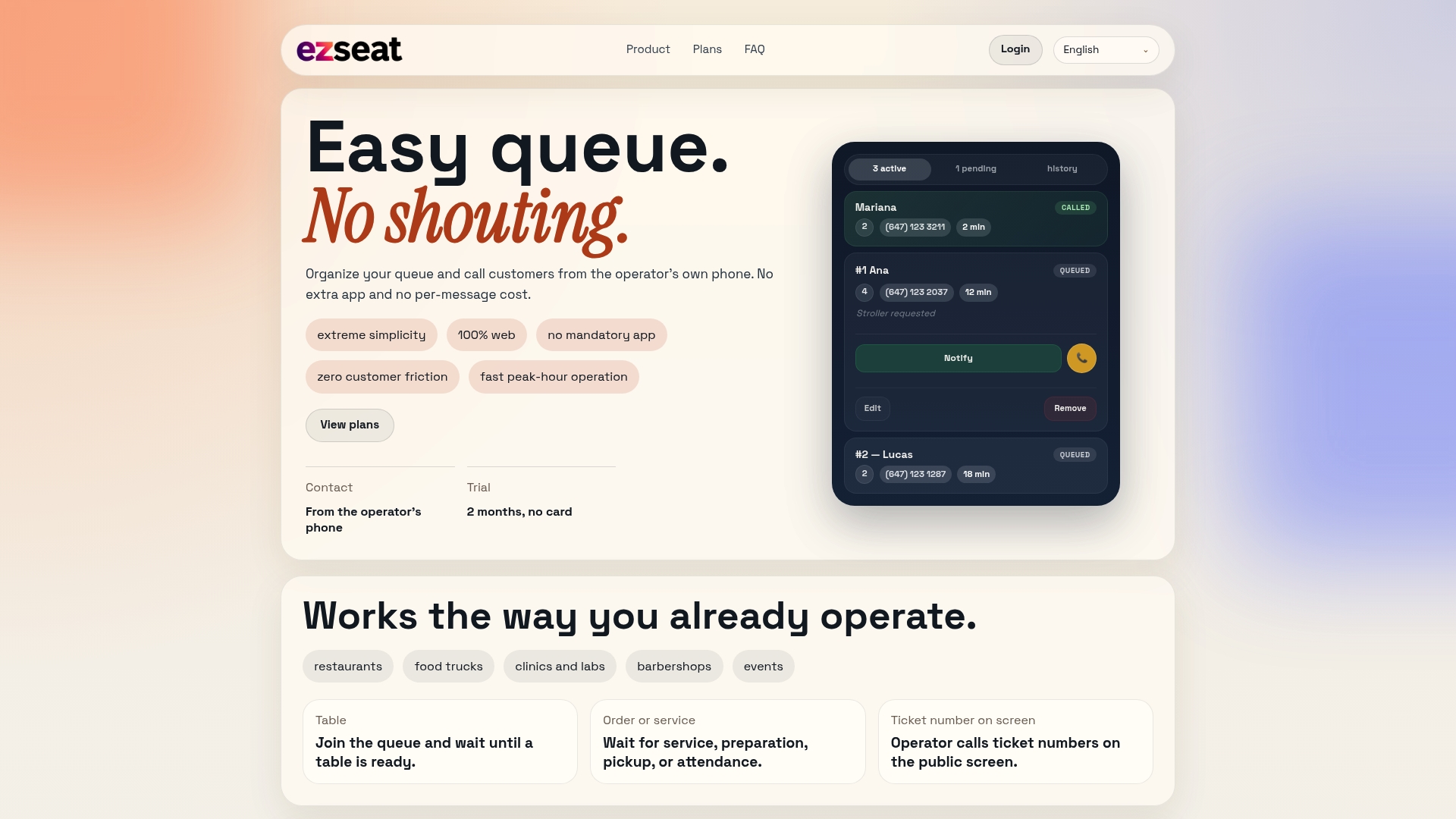
Ezseat also offers a two-month free trial before you commit to a paid plan, so you can run it through a real weekend rush before deciding it's worth keeping. Visit the Ezseat landing page to start your trial, or follow the web-based waitlist setup guide for a walkthrough you can complete before your next shift. If no-shows have been eating into your table turns, the guide on reducing no-shows is worth reading alongside it. And if you're trying to fill that queue faster on slow nights, The Savage Influence's guide to restaurant social media covers how to turn foot traffic into a full online waitlist before doors even open.
Useful Docs for Setting Up Your Waitlist
- Join the waitlist — Reserve with Google: how Google's search and Maps waitlist integration works for guests.
- Check wait times and get in line remotely with Yelp: Yelp's remote queueing announcement and operator context.