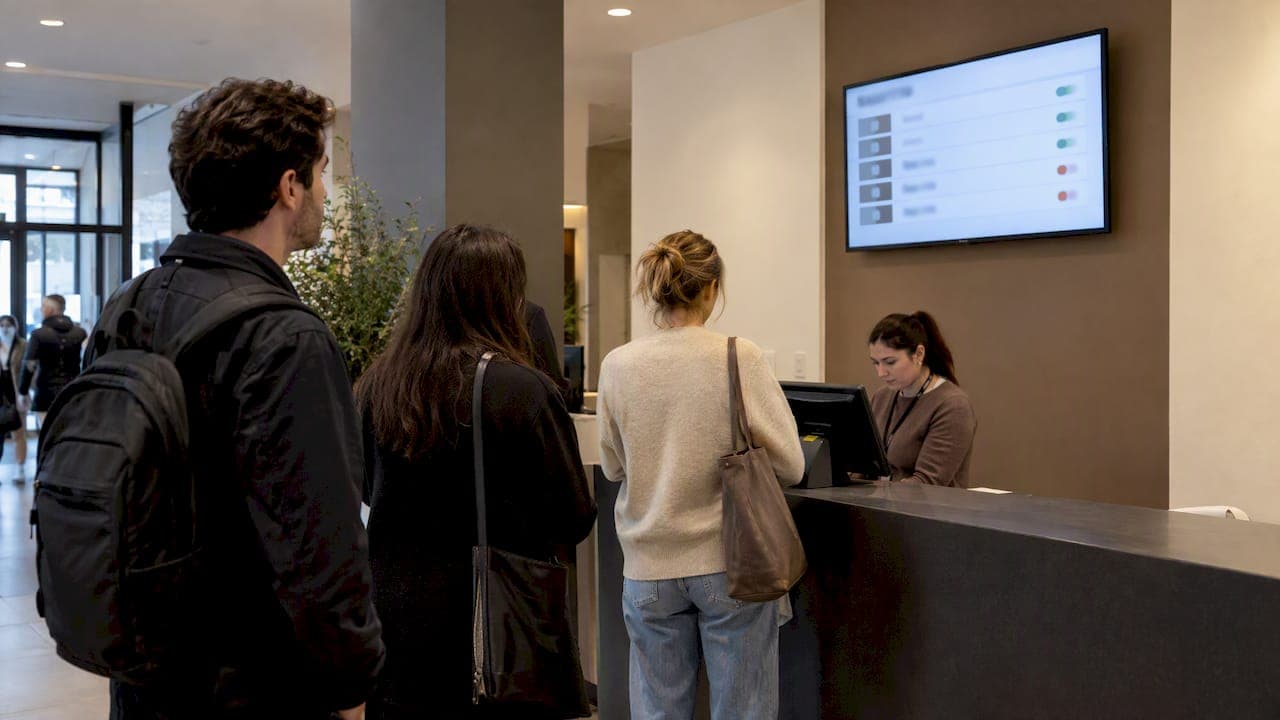
A queue screen needs four things to start: the current "now serving" code, the next position or two, the destination counter, and a short instruction telling that customer what to do. Show a wait estimate only when your data backs it up, keep every line short, and the screen will do its real job: cutting the uncertainty that makes a wait feel longer than it is.
TL;DR:
- Use status strings of one to six words, name the ticket code and destination, and pair icons or animations with readable text for accessibility.
- A CHI 2026 study of 425 participants found countdowns more frustrating than elapsed time; use ranges for uncertain waits and ETAs only with reliable data.
- Match text size to viewing distance, use high contrast, and place screens where people naturally look; outdoor displays may need shade or protection from glare.
- Use ticket codes instead of names, and feed screens and mobile views from one live source with an offline message and a visible update time.
- Run a one to two week pilot, check screen data against the operator dashboard daily, and adjust wording or timing using staff and customer feedback.
Table of Contents
- 1. What to display: minimum live elements and useful optional fields
- 2. Messaging copy: short, operator-ready status strings and templates
- 3. Timing and ETA strategy: when to show it and which mode to choose
- 4. Visual layout and motion: public-display design patterns
- 5. Accessibility, privacy, and safety: what to avoid and what to include
- 6. Hardware and feed basics: choosing displays and connecting live data
- 7. Implementation checklist: configure your screen and run a pilot
- 8. Multi-language support and accessibility features
- 9. Best practices for queue screen placement and visibility in different environments
- 10. Real-time updates and synchronization between queue screens and mobile devices
- 11. Troubleshooting common issues and ensuring system reliability
- 12. Ezseat perspective: why no-app browser flows fit these screen patterns
- Putting these patterns into practice with Ezseat
- FAQ
- Sources
1. What to display: minimum live elements and useful optional fields
A queue screen earns its place by answering one question instantly: what's happening right now, and what should I do? That means four live elements, always visible, never buried under branding or ads.
- Now serving: the current ticket code, large and unmistakable.
- Next position(s): one or two upcoming codes, so people see movement.
- Destination: the counter, room, or service point tied to that code.
- Call-to-action: a direct instruction, such as "Proceed to Counter 2."
Beyond that minimum, a few optional fields add value without clutter: a queue-position indicator for people further back, a wait-time range when the estimate is trustworthy, a "walk-ins accepted" flag during slow periods, and short announcements for closures or staff changes. How many "next" items to show depends on space and throughput: a single-counter clinic might show one, while a busy food hall with six registers can afford three or four without crowding the layout.
2. Messaging copy: short, operator-ready status strings and templates
The words on the screen matter as much as the layout. A status line should read in under two seconds, which means one short phrase, not a sentence.
- Keep the primary status to one to six words.
- Use -ing verbs for anything in progress: "Calling," "Serving," "Preparing."
- Use past tense for completed actions: "Served," "Called twice, skipped."
- Avoid vague phrasing like "please wait" with no context.
- Provide plain-text alternatives behind any icon or animation for screen readers.
A few templates cover most situations: "Now serving A-014 at Counter 2," "Calling B-009," "Service paused, staff will update shortly." Each one names a code, a verb, and a destination or reason, in that order, so repeat visitors learn the pattern fast.
Pro Tip: Write every status string at the font size and distance you'll actually use, then read it from across the room before you publish it.
3. Timing and ETA strategy: when to show it and which mode to choose
Showing a number is not automatically helpful. A CHI 2026 controlled experiment with 425 participants found that remaining-time countdowns raise frustration and lower pleasantness compared to elapsed-time displays, even when the underlying wait is identical. For most physical queues, an elapsed-time display or a plain range communicates progress without setting a promise you can't keep.
- Show determinate progress or a precise ETA only when your measurement is reliable.
- Prefer ranges such as "About 8 to 12 minutes" when the estimate carries uncertainty.
- Avoid second-by-second countdowns on busy public displays. They draw attention to delay instead of progress.
- Default to elapsed-time framing ("Waiting 6 minutes") when you can't confidently predict completion.
One figure worth building policy around: in that same CHI 2026 study, remaining-time feedback produced measurably more frustration than elapsed-time feedback across the same wait duration, which argues for caution before switching on a countdown clock.
Our own breakdown of ETA models and when to trust them goes deeper into how to decide whether your data supports a number at all.
4. Visual layout and motion: public-display design patterns
A queue screen is read from a distance, often in motion, so layout has to do the work that a sentence does on a phone.
- Stack information by priority: the now-serving code gets the largest block, the ETA or position sits below it, and branding or promotional content takes the smallest space at the edges.
- Set font size by viewing distance: a common rule of thumb is roughly one inch of character height for every 10 feet of expected reading distance.
- Use high contrast, such as light text on a dark background, so the screen stays legible under glare or dim lighting.
- Use motion sparingly. A subtle progress bar or a gentle highlight on the current code can help draw the eye, but research on progress indicators shows that exaggerated or hedonic animation changes perceived speed, so it should support the message, not dominate it.
Fluent design guidance recommends short, descriptive labels paired with determinate progress only when progress is actually measurable, and reserves spinners for waits under about three seconds.
5. Accessibility, privacy, and safety: what to avoid and what to include
Public screens expose information to everyone in the room, which makes privacy and accessibility part of the same design decision.
- Use ticket numbers or short codes instead of full names. Privacy guidance for public displays recommends ticket identifiers specifically to limit public exposure of personal data.
- Keep contrast high and text size generous for low-vision visitors.
- Mark up browser-driven screens with ARIA-friendly labels so assistive tools can read status changes aloud.
- If you use audio announcements, keep the wording clear, keep the volume reasonable, and make them optional where local accessibility rules allow.
Pro Tip: Test your screen with the sound off and the brightness turned down. If the message still makes sense, it's built for the room you actually operate in.
6. Hardware and feed basics: choosing displays and connecting live data
The screen itself matters less than how reliably content reaches it. Three common setups cover most businesses: a commercial LED panel for bright storefronts, a consumer TV paired with a small media player for lower-traffic spaces, or a dedicated signage player for larger multi-screen deployments.
- Feed options include a cloud push to the display, a browser URL that renders the queue publicly with no app install, or a local dashboard feeding a player. Each should include offline fallback messaging so the screen never goes blank.
- What the feed must carry: the now-serving ID, the destination, and an ETA field only when that data is trustworthy.
- Common pitfalls: clock drift between devices, stale caching that shows an old ticket number, and screens that silently stop updating during a network hiccup.
Our hardware comparison for small business queue displays walks through tradeoffs in more detail, and operators sourcing physical signage can find installation partners like A3M's digital sign solutions for finished hardware and mounting.
7. Implementation checklist: configure your screen and run a pilot
Getting a queue screen right takes a short, deliberate test cycle rather than a single launch.
- Decide the minimum feed fields and map each one to a real data source in your system.
- Draft short status strings and test them for legibility at your actual viewing distance.
- Pick an ETA policy of none, ranges, or measured time, and enable timing only where the underlying data is reliable.
- Choose display hardware and lock in a content-delivery method, whether a browser URL or a dedicated signage player.
- Run a one to two week pilot, gather staff feedback and a simple perceived-wait read from customers, then adjust copy and timing before rolling it out further.
Our queue display guide for venue managers includes a longer version of this checklist with copy examples by business type.
8. Multi-language support and accessibility features
Many waiting areas serve visitors who don't share a single language, and a queue screen that only works in one language leaves part of the room guessing. Rotating status text between two or three common languages, or using a simple language toggle on browser-based screens, keeps the core message (ticket code, destination, instruction) understandable without redesigning the whole layout each time.
Accessibility and multi-language support overlap more than they first appear to. Icons paired with short text, such as an arrow next to "Proceed to Counter 2," carry meaning across language gaps and also help visitors using screen magnification. Numbers and codes, which are the most critical part of the message, read the same in every language, so leading with the ticket code rather than a sentence reduces translation work and confusion at once.
For audio announcements, clear enunciation and a controllable volume matter more than translating into every language a venue might encounter. A visual screen that updates reliably remains the primary channel, with audio as a supplement rather than a requirement. Where local accessibility rules apply, confirm that your signage meets the relevant contrast and readability standards for your market before deployment, since requirements vary by country.

9. Best practices for queue screen placement and visibility in different environments
Placement decides whether all the copy and layout work actually gets read. A screen mounted too high, too far from the waiting area, or behind a support pillar fails regardless of how well it's designed.
In a clinic or small office, eye-level placement near the seating area works better than a screen positioned behind reception, since patients spend most of their wait looking forward, not glancing over their shoulder. In a food hall or counter-service restaurant, overhead placement visible from multiple angles suits a space where people stand and move around rather than sit. For outdoor or semi-outdoor setups, such as a food truck line, glare becomes the deciding factor: a screen that looks perfect indoors can wash out completely in direct sunlight, so anti-glare coating or shaded mounting is worth the extra cost.
Distance from the screen to the farthest viewer should guide font size choices directly, and a second, smaller screen near the back of a long line often solves legibility problems more cheaply than one oversized panel. Whatever the setting, the screen should sit where people naturally look while waiting, not where it's simply convenient to mount.
10. Real-time updates and synchronization between queue screens and mobile devices
A queue screen loses its value the moment it falls out of sync with what customers see on their own phones. When someone checks their position on a mobile browser and the public screen shows a different now-serving code, trust in the whole system erodes fast.
Synchronization works best when both the public screen and any mobile view pull from the same live feed rather than separate caches updated on different schedules. A browser-based queue join, where customers check their status through a web link instead of a downloaded app, keeps that feed consistent because there's only one data source to update instead of two systems that can drift apart.

Update frequency matters too: a feed that refreshes every few seconds feels responsive, while one that lags by a minute or more creates the exact uncertainty a queue screen is supposed to remove. Building in a brief "last updated" indicator, even a small timestamp, gives customers a way to judge whether the information in front of them is current, which matters most during peak hours when ticket numbers move quickly.
11. Troubleshooting common issues and ensuring system reliability
Most queue screen failures trace back to a handful of repeat causes, and knowing them in advance saves a scramble during a busy shift. Clock drift between the device generating ticket data and the display itself is a common culprit, showing stale information even when the backend is working correctly. Regular time synchronization across devices prevents this.
Caching is another frequent issue: a browser or signage player that holds onto an old version of the page can display yesterday's now-serving code until manually refreshed. Setting a short cache expiration or forcing periodic reloads avoids this without requiring staff intervention.
Network interruptions are inevitable in any public venue, so every screen needs an offline fallback message rather than a blank or frozen display, something as simple as "Updating, please wait" tells customers the system is still working. Finally, a quick daily check, confirming the screen matches what the operator dashboard shows, catches small sync issues before they turn into a line of confused customers.
12. Ezseat perspective: why no-app browser flows fit these screen patterns
We built our queue system around a simple belief: a browser link removes more friction than any app ever could. Letting customers join a queue from a phone's browser, with no download required, keeps the now-serving feed and the customer's own status check pulling from the same live data. That alignment is what makes the screen patterns in this guide practical to run day to day, not just design on paper.
— Ezseat
Putting these patterns into practice with Ezseat
Everything in this guide, from browser-based join to a public screen fed with now-serving codes and optional ETAs, maps directly onto how our platform works. Multi-queue support means a single dashboard can drive several screens at once across different counters or service areas, without separate logins or hardware per queue.
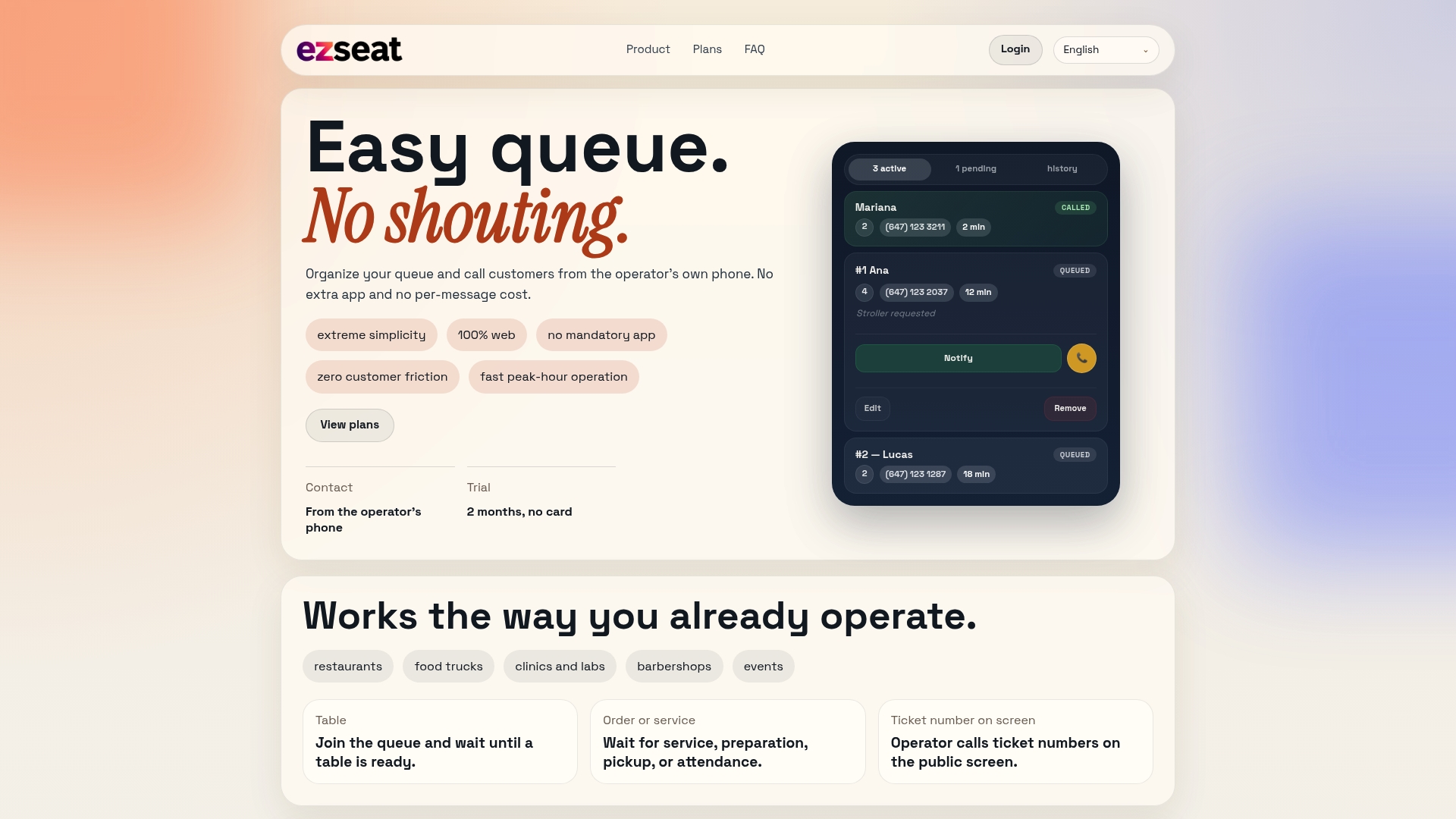
A short pilot is the fastest way to see whether elapsed-time framing and a cleaner status template reduce complaints at your counter. Our Light plan starts at $3.90 per month or $39.00 per year, and our Pro plan runs $14.90 per month or $149.00 per year, both available after a free two-month trial. Set up your first queue screen at Ezseat and test the checklist above with your own line this week.
FAQ
What does "queue" mean on YouTube?
On YouTube, a queue is simply the list of videos set to play one after another without manual selection. It's a personal playback list, unrelated to a physical waiting line or a business queue management system.
What is in a queue?
A queue generally holds items waiting for their turn, whether that's people waiting for service, videos waiting to play, or tasks waiting to process. In a customer service context, a queue typically contains ticket numbers, timestamps, and the destination each person is routed to.
Where do I find my queue on YouTube?
On YouTube, the queue appears in the "Up Next" panel beside the video player on desktop, or by tapping the queue icon in the mobile app. It shows the videos lined up to play after the current one.
How does the queue work?
A queue processes items in the order they arrive, typically first-in, first-out, matching each new entry against available service points. For a business queue screen, that means displaying the current ticket being served, the next ones coming up, and the counter or service point each is assigned to.
Sources
- Fluent 2 design - Wait UX / Progress usage
- Counting the Wait: Effects of Temporal Feedback on Downstream Task Performance and Perceived Wait-Time Experience (CHI 2026)
- The Online Waiting Experience: Using Temporal Information and Distractors to Make Online Waits Feel Shorter (JAIS / Aisel)