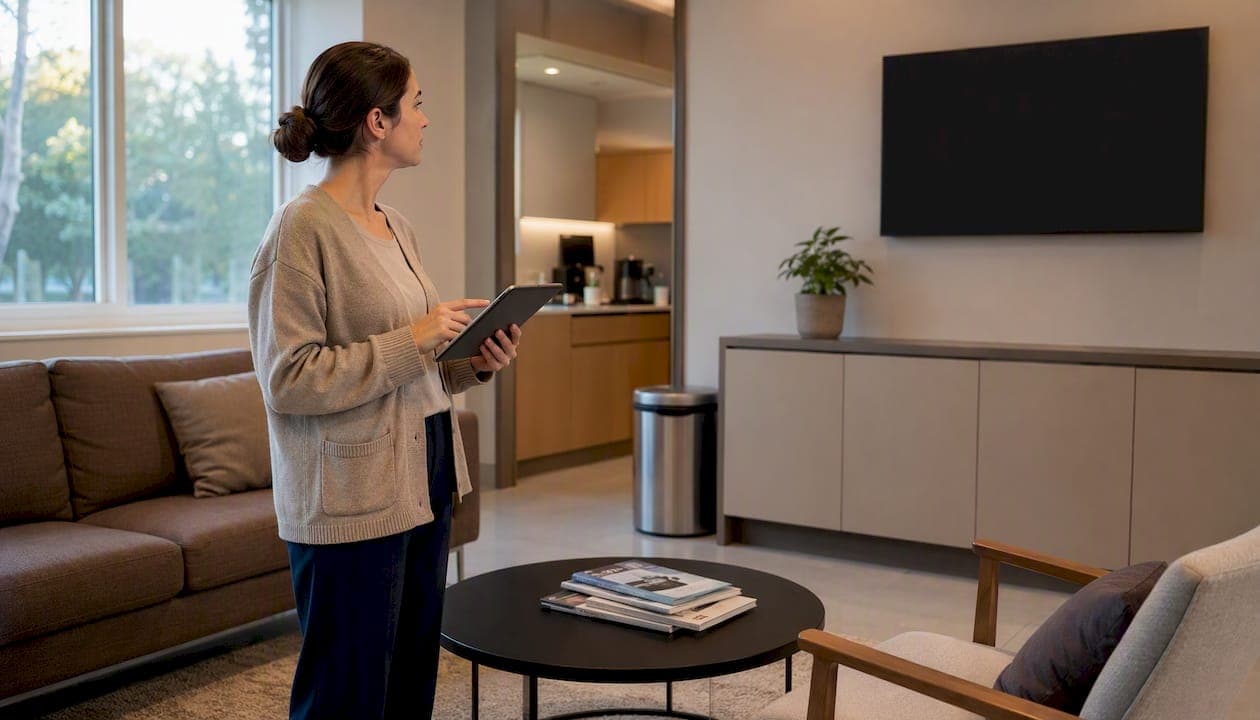
A queue display screen is a public-facing digital display that shows ticket numbers, counter assignments, and estimated wait times to customers in a service venue. The fastest way to deploy one is a web-based queue management system like Ezseat, which runs the public display in any browser, lets customers join via their phones without downloading an app, and cuts staff interruptions from the first day. If you want to test it before committing to hardware, Ezseat offers a free trial period you can run on any existing TV.
Table of Contents
- What does a queue display screen actually show?
- Why a waiting room screen pays for itself quickly
- Which queue display setup fits your venue?
- Where queue display screens deliver the most value
- How to integrate queue management with your staff workflow
- What features should you prioritize when choosing a solution?
- What does a queue display system actually cost?
- Why Ezseat works well for queue display screens
- Key Takeaways
- What operators actually learn after running a pilot
- Ezseat makes your first queue display screen easy to set up
- Useful sources and further reading
What does a queue display screen actually show?
A queue display screen is the customer-facing half of a queue management system. The backend tracks who is waiting, in what order, and at which counter. The display pulls that data and renders it in real time so customers know exactly where they stand without asking anyone.
The core components every operator should expect:
- Display device: Any TV, monitor, or tablet running a browser. Modern browser-based display implementations accept simple URL parameters to populate a waiting screen with ticket numbers, text, or images.
- Queue server: The backend that holds the ordered list, tracks call events, and pushes updates to the display.
- Join channels: How customers enter the queue. Common options are a browser QR link, a reception kiosk, or an SMS entry point.
- Staff interface: The operator console where staff call the next customer, reassign counters, or pause the queue.
- Display content: Ticket number, counter label, estimated wait time, and custom messages or promotions during idle states.
The flow is straightforward: a customer joins via browser or kiosk, the queue server assigns a ticket, staff call the next number from their console, and the display updates instantly.
A visible queue does one thing no amount of staff reassurance can replicate: it gives every customer proof that the line is moving and that their place in it is secure.
Pro Tip: Disable device sleep settings on any TV or media player running your display. Aggressive sleep timers are the single most common reason a browser-rendered now serving display stops updating mid-shift.
Why a waiting room screen pays for itself quickly
The operational case is straightforward. When customers can see the queue, they stop hovering near the counter, stop asking staff "how much longer," and spread out in the waiting area. That alone frees staff to focus on service rather than crowd management.
On the customer side, visible queues restore a sense of agency. Customers who can see their position in line perceive the wait as shorter and fairer, even when the actual wait time is unchanged. That psychological effect translates directly into satisfaction scores and repeat visits.
Key metrics that typically improve after deploying a public queue screen:
- Perceived wait time (customers report shorter waits even when clock time is the same)
- Transactions per hour (staff spend less time on crowd management)
- Dwell time quality (customers relax, browse, or engage with content on the display)
- Staff interruptions per shift (drops sharply when the display answers the "am I next?" question)
The idle screen time is also a marketing asset. When no ticket is being called, the display can cycle branded promotions, daily specials, or safety notices instead of sitting blank.
Which queue display setup fits your venue?
| Setup | Best fit | Pros | Cons |
|---|---|---|---|
| Simple queue TV (display only) | Small venues, food trucks | Cheapest, fast to deploy | Staff must manually call numbers |
| Kiosk-driven ticketing | Clinics, DMVs, high-volume retail | Structured, self-service | Hardware cost, maintenance overhead |
| Browser join + public display | Restaurants, salons, events | No app required, flexible hardware | Needs reliable Wi-Fi |
| Hybrid (SMS/phone + display) | Large venues, outdoor events | Customers can wait off-site | More complex to configure |
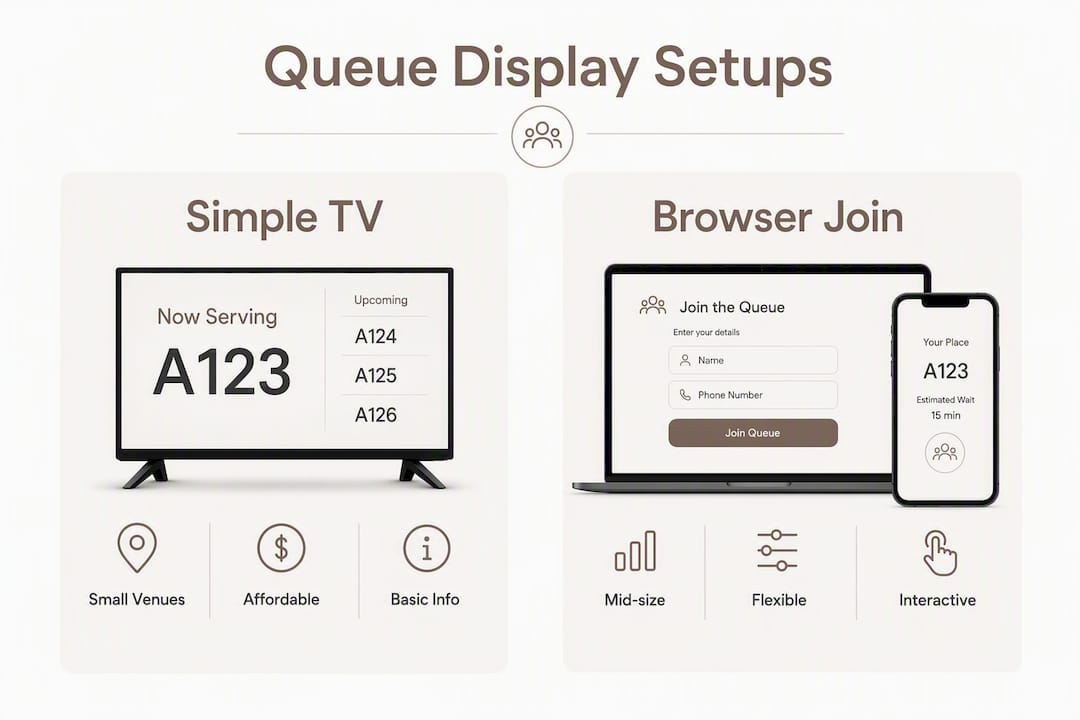
For most small-to-mid-size U.S. service venues, the browser join plus public display setup hits the right balance. Customers scan a QR code, join the queue on their phone, and watch the screen. No app install, no kiosk to maintain.
Pro Tip: Start with the browser-join setup on an existing TV before buying dedicated kiosk hardware. You will learn your actual traffic patterns during the pilot and can make a smarter hardware decision afterward.
Kiosk-driven setups add structure for venues where customers arrive without phones or where a physical ticket stub matters (think urgent care waiting rooms or government service counters). SMS-based hybrid setups work well for outdoor events where customers want to leave the immediate area while they wait.
Where queue display screens deliver the most value
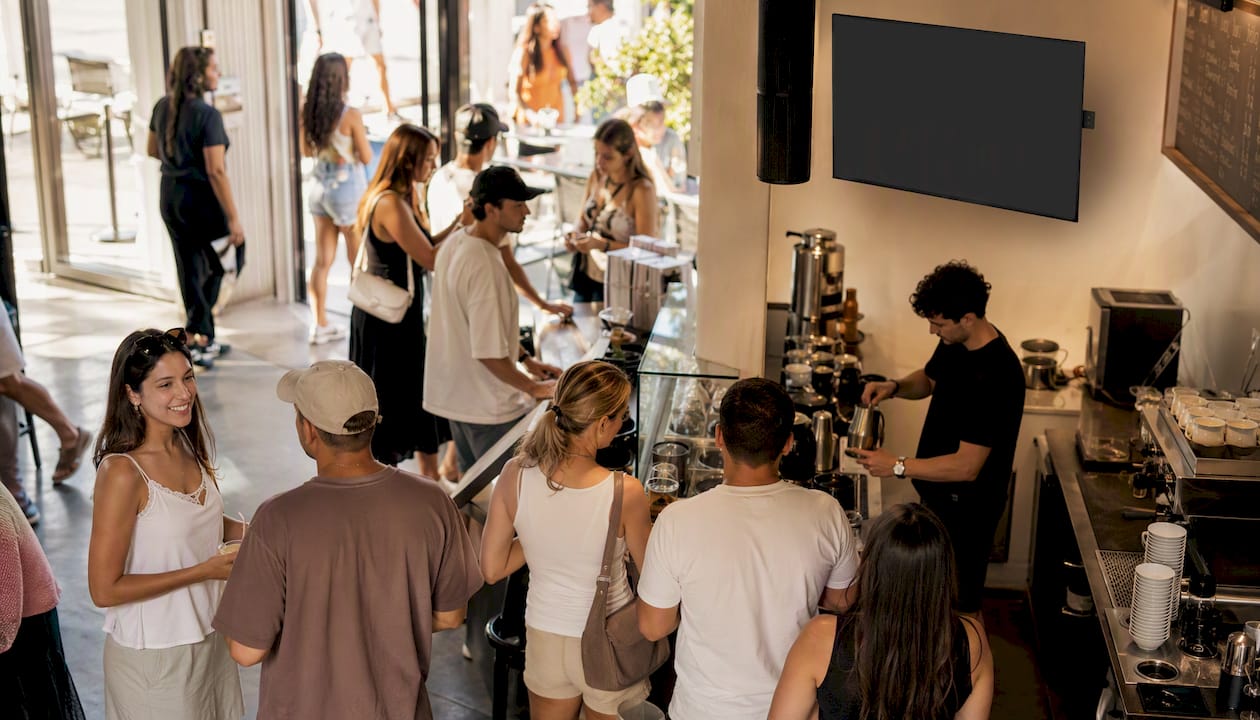
Quick-service restaurants and food trucks see the sharpest gains during peak hours. Lunch rushes create bunching at the counter; a public queue screen disperses that crowd and lets customers wait at their table or outside. The minimal viable setup here is a single TV near the pickup area and a QR code at the order point.
Clinics and urgent care centers have a different challenge: patients are anxious, and any ambiguity about wait order amplifies that anxiety. A waiting room screen showing anonymized ticket numbers (never patient names or health details on a public display) reduces front-desk interruptions and helps patients feel the process is fair. Multilingual messaging on the display is worth configuring for clinics serving diverse communities.
Salons and barbershops often run informal queues that frustrate walk-in customers who cannot tell how long the wait will be. A browser-based waiting list screen visible from the entrance sets expectations before a customer even sits down.
Event check-in benefits from a public queue display at registration desks, especially for multi-track events where different lines serve different badge types. Color-coding queues on the display to match counter signage eliminates confusion about "which line am I in?"
How to integrate queue management with your staff workflow
Getting the hardware placed and the software configured is the easy part. The harder part is making sure staff actually use the system consistently, because a queue display that falls out of sync with reality is worse than no display at all.
- Choose display placement first. Mount the screen where it is visible from every seat in the waiting area, not just from directly in front of the counter. Eye level or slightly above works best.
- Pick your join method. For most venues, a QR code at the entrance plus a browser link covers the majority of customers. Add a kiosk only if a meaningful share of your customers arrive without smartphones.
- Configure content rules for idle states. Set the display to show branded content or announcements when no ticket is being called. A blank screen signals the system is broken; a rotating promo signals it is working.
- Train staff on the call workflow. Staff should call the next number from the console, not by shouting. The display updates the moment they press call. Run a 30-minute dry run before going live.
- Set a fallback. Decide in advance what staff do if the display goes offline (a simple whiteboard with the current number is enough). Customers need to know the venue has a plan.
- Review reporting weekly. Most queue management platforms log call times, wait durations, and peak periods. Use that data to adjust staffing levels and queue configuration.
For multi-queue venues, match the color coding on the public display to the labels on staff tablets. When counter 1 is blue on the screen and blue on the tablet, misrouting drops to near zero.
Pro Tip: Use idle screen time to rotate FAQs, safety notices, or daily specials. Event and virtual-stage platforms have demonstrated that waiting screen media like images and short videos keep audiences engaged during delays. The same logic applies to a physical waiting area.
What features should you prioritize when choosing a solution?
Core features (non-negotiable):
- Browser-based public display (no dedicated app on the TV)
- Browser join for customers (no app download required)
- Staff console accessible from a phone or tablet
- Multi-queue support if you run more than one service line
- SMS or phone notifications so customers can wait off-site
Reliability and security:
- Offline handling or graceful degradation when Wi-Fi drops
- No personal health information on the public screen; use ticket numbers only
- Simple device management so a non-technical staff member can restart the display
Operational features:
- Custom messages and branding on the display
- Estimated wait time calculations
- Reporting dashboard showing peak periods and average wait times
- Multi-device sync so the display and staff console stay in lockstep
Pro Tip: Never show patient names, appointment details, or any personally identifiable information on a public queue screen. Anonymized ticket numbers protect privacy and keep you clear of HIPAA-adjacent concerns in clinical settings.
Programmatic display control, where a queue server pushes updates to the screen via configurable component properties, is worth understanding if your IT team plans a custom integration. For most operators, a hosted SaaS solution handles this automatically.
What does a queue display system actually cost?
Hardware is the variable. A smart TV or low-cost media player that runs a browser is all you need for the display endpoint. Kiosk hardware adds cost and maintenance. Software pricing for SaaS queue management typically follows a tiered subscription model, with a free trial period before paid tiers kick in.
Typical cost buckets:
- Display hardware: a consumer smart TV or a small media player connected to an existing monitor
- Optional kiosk hardware: a tablet stand or dedicated kiosk unit
- SaaS subscription: trial period, then Light or Pro tier depending on queue volume and feature needs
- Hidden costs: wall mounting, cabling, network upgrades if Wi-Fi coverage is weak in the waiting area
Realistic rollout timeline:
- Discovery and configuration: a few days to set up queues, join methods, and display content
- Pilot on existing hardware: one to two weeks running real traffic to validate the UX
- Staff training: a 30-minute session is usually enough for a small team
- Full rollout with permanent hardware: two to four weeks if new hardware procurement is involved
The smartest move is to run the pilot on a TV you already own. You will learn whether your Wi-Fi is stable enough, whether the display placement works, and whether staff adopt the call workflow before spending anything on dedicated hardware.
Why Ezseat works well for queue display screens
Ezseat is built specifically for the browser-join plus public display model. Customers join the queue by scanning a QR code or opening a link on their phone. No app required on either side. The public screen runs in any browser, which means any smart TV or laptop already in your venue can serve as the display.
How a typical Ezseat implementation runs:
- Start the free trial and create your first queue in minutes
- Open the public display URL on any TV or monitor in your waiting area
- Configure join methods: QR code at the entrance, kiosk mode on a tablet, or SMS link
- Set idle-state content so the screen stays active between calls
- Train staff on the call console (phone or tablet, no desktop required)
- Go live and monitor the reporting dashboard to tune staffing and queue settings
Ezseat supports multi-queue and multi-device setups, so venues with more than one service line or counter can run the whole operation from a single account. Monthly and annual plans are available after the trial, with tiers that scale as your volume grows.
Pro Tip: Run Ezseat's public display on a secondary browser tab on a TV you already use for other signage. You can switch between queue view and promotional content without any additional hardware during the pilot phase.
Key Takeaways
A browser-based queue display screen, integrated with a web-based queue management system, is the fastest and most cost-effective way for U.S. service venues to reduce perceived wait time, cut staff interruptions, and give customers a visible, fair ordering of service.
| Point | Details |
|---|---|
| Browser-based display is the flexible choice | Any smart TV or media player running a browser can serve as your public queue screen. |
| Customers need no app to join | Browser-based QR join removes the biggest friction point for walk-in customers. |
| Idle screen time has real value | Rotate promotions, FAQs, or announcements so the display stays useful between calls. |
| Pilot before buying hardware | Run a pilot on an existing TV to validate Wi-Fi, placement, and staff workflow first. |
| Ezseat offers a two-month free trial | Start with Ezseat's free trial to test public display, browser join, and staff console at no cost. |
What operators actually learn after running a pilot
The first thing most managers notice is not the technology. It is the silence. The front desk stops fielding "am I next?" questions within the first shift, and that alone changes the energy in the room.
Staff resistance is common before go-live and almost always disappears within a week. The moment a staff member realizes they can call the next customer with one tap instead of shouting across a crowded room, the system sells itself internally.
The practical trade-off worth knowing: there is a small hardware cost and a setup day, but the return shows up immediately in staff time and customer composure. The display also becomes a communication channel you did not plan for. During slow periods, the idle screen running a daily special or a service update does quiet marketing work that a blank wall never could.
The one thing pilots consistently reveal is a Wi-Fi gap. The display drops or freezes not because the software failed but because the router in the waiting area is too far from the TV. Fix the network before the hardware, and the rollout goes smoothly.
Ezseat makes your first queue display screen easy to set up
Most operators spend more time debating hardware than they do actually running a queue. Ezseat cuts that delay: the public display runs in any browser, customers join without an app, and the staff console works from any phone or tablet. The two-month free trial covers the full feature set, including the public screen, browser join, and the staff call console, so you can validate the entire workflow on your existing TV before spending a dollar on hardware.
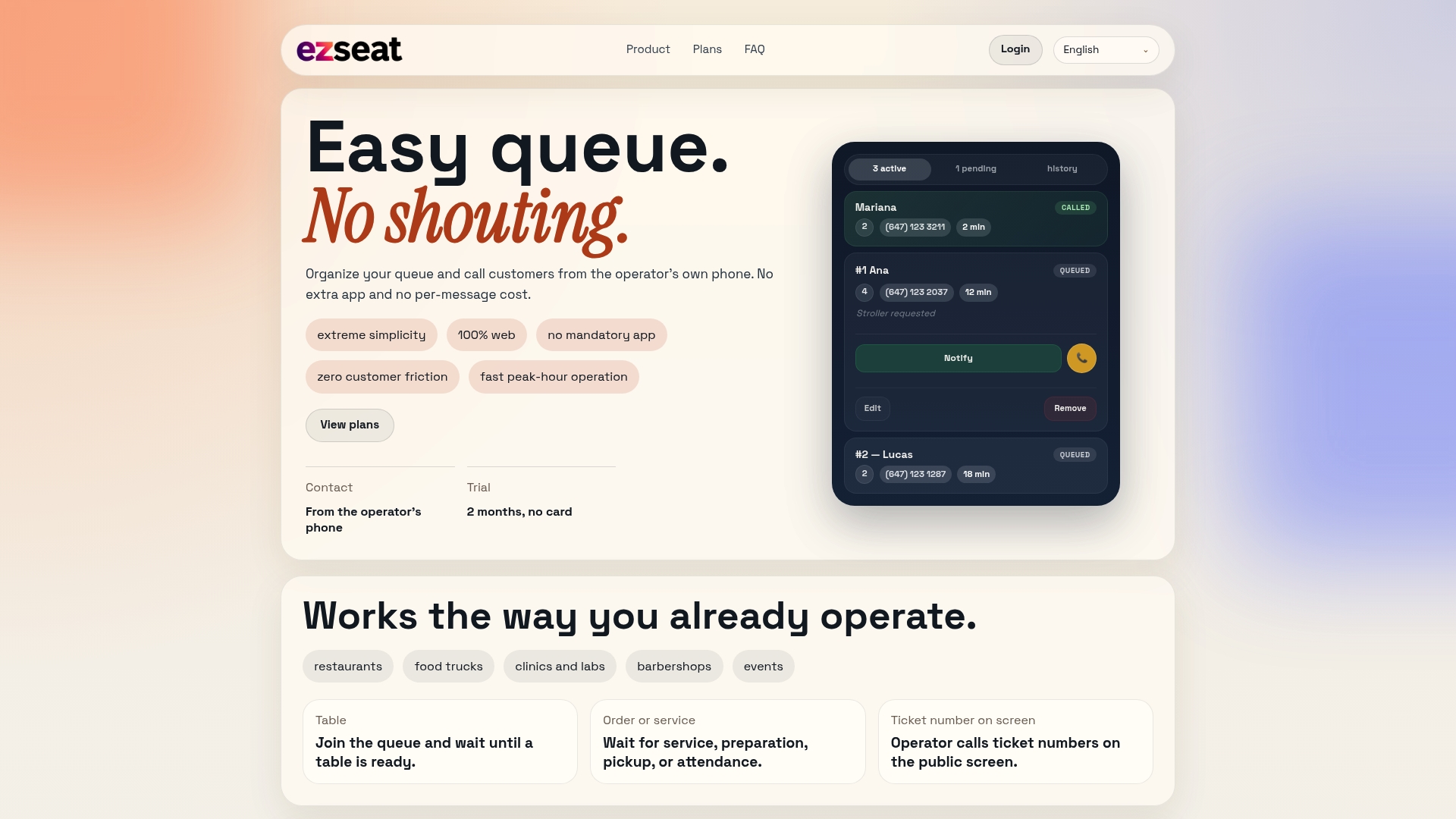
Onboarding support is included. If you hit a configuration question during setup, the team is reachable. Start the free trial at ezseat.app, open the public display URL on a TV in your waiting area today, and see whether your staff calls the next customer before the end of the first shift.
Useful sources and further reading
Resources worth bookmarking, organized by audience:
- Operations managers and venue owners: Ezseat product landing page — start here for the free trial, feature overview, and supported display and join methods.
- IT and developers implementing a custom display: Video SDK waiting-screen docs — shows how browser-based waiting screens accept image and text parameters for programmatic control.
- Developers building realtime UI components: Cloudflare RealtimeKit rtk-waiting-screen reference — documents configurable display component properties for queue-server-driven screens.
- Event and virtual-stage operators: Airmeet waiting screen setup guide — covers uploading images, GIFs, and video for idle-state engagement during delays.
- Enterprise and hospitality operators managing complex waitlists: Oracle Waitlist Screen documentation — explains administrative workflows for searching, editing, and processing waitlisted reservations in large-venue systems.