
For most restaurants, clinics, barbershops, and food trucks, the right choice is a consumer TV paired with a small media player if you're running a waiting-area display, or a standalone LED numeric panel if you have one counter and a simple first-in-first-out line. Upgrade past that only when you need self-check-in, multiple counters with different queue routing, or reporting on wait times.
Here's the quick version before we get into the details:
- Single counter, simple line: standalone LED numeric display, no network needed
- Waiting area with a screen showing names or numbers: 43 to 55 inch consumer TV plus a media player like a Fire TV Stick, running a browser-fed display
- Multi-counter routing or self-check-in: Android signage or a touch kiosk
- Web-based queue systems like Ezseat work on any of the screen types above since they load in a browser, no app install required
Key Takeaways
The most reliable queue display strategy for small venues pairs low-cost, easily replaceable hardware with a browser-fed system rather than expensive embedded signage.
| Point | Details |
|---|---|
| Match hardware to venue size | A single counter needs a standalone LED display; waiting areas need a 43 to 55 inch TV. |
| Confirm protocol compatibility first | Check for 433MHz, RS-232, or dry-contact support before purchasing any display. |
| Budget for replaceability | Keep a spare media player on-site since swapping hardware beats service calls for uptime. |
| Test in real conditions | Check visibility and glare at your venue's worst lighting hour, not in a showroom. |
| Ezseat fits standard hardware | It runs on consumer TVs and media players through a browser, avoiding app installs or CMS lock-in. |
Table of Contents
- What Are the Main Types of Public Screen Hardware?
- How Big Should Your Queue Display Be?
- Will Your Display Work With Your Ticket Dispenser?
- How Do You Install and Maintain a Queue Screen?
- What Does Queue Display Hardware Actually Cost?
- What Should You Ask Before Buying Queue Screen Hardware?
- What Makes a Screen Durable Enough for Outdoor Use?
- How Much Power Do Queue Displays Use, and Does It Matter?
- Does Your Screen Need to Work With a Specific CMS?
- Why Simpler Hardware Usually Wins for Small Venues
- Run Your Queue Display Without Buying Into a New App
- Sources
What Are the Main Types of Public Screen Hardware?
Four hardware categories cover almost every queue display scenario, and picking the wrong one is the most common (and most expensive) mistake small operators make.
- Standalone LED numeric displays. These plug in, connect to a ticket dispenser, and show a number. Nothing else. They run roughly $150 to $350 and don't need Wi-Fi or a network connection at all, which makes them close to bulletproof for a single counter. The trade-off: no names, no branding, no flexibility if you add a second counter later.
- Consumer TV plus a media player. A 43 to 55 inch TV with a Fire TV Stick, Chromebit, or small mini PC gives you a browser-fed display that can show anything a web page can render, including queue software dashboards. Total hardware cost typically lands between $250 and $550, and when the player dies, you replace a $60 stick, not the whole unit.
- Android or embedded signage. These are purpose-built commercial displays with signage software baked in, letting you push updates and branding remotely across multiple screens. They cost more and need more setup, which only pays off once you're managing several locations or screens at once.
- Touch kiosks. Self-service check-in, ticket printers, sometimes even payment. Some high-end models, like transparent OLED touch kiosks, look impressive but come with industrial-grade maintenance demands most small venues don't need.
How Big Should Your Queue Display Be?
Readability comes down to one simple ratio: digit height versus how far your customers are standing or sitting from the screen. A 3.5 inch digit is legible from about 10 feet away, and that scales roughly linearly. Double the distance, double the digit height.
For screen sizing by room:
- Small waiting areas (under 15 seats): 43 to 50 inch TV
- Standard waiting rooms: 43 to 55 inches is the typical sweet spot
- Large waiting rooms or event venues: 65 inches, but only if the room genuinely needs it
- Counter-mounted displays: 10 to 15 inch panels work fine at close range
Mount screens at eye level or slightly above, angled to avoid glare from windows or overhead lighting. A screen that looks perfect at 9 a.m. can wash out completely under harsh midday sun through a storefront window.
Pro Tip: Bring a demo unit into your actual space and check it at your worst lighting hour, not your best one. A showroom test tells you nothing about how a screen behaves under your lobby's afternoon glare.
If you run more than one service point, add a screen per counter or window rather than relying on customers to track their number across a single shared display. It cuts confusion and keeps lines moving.
Will Your Display Work With Your Ticket Dispenser?
This is where most installation delays happen, and it's almost always avoidable with one conversation before you buy anything.
Physical ticket dispensers send signals through a handful of common protocols: 433MHz wireless, RS-232 serial, or simple dry-contact triggers. If your dispenser uses one of these and your display or gateway doesn't support it, nothing will sync, no matter how good the screen looks on the showroom floor.
Web-based systems sidestep this entirely. Many queue platforms generate a public display URL that you simply load in a browser on a TV or media player, and the screen updates live as tickets move, an approach used by Waitwhile and similar platforms. No dispenser hardware, no protocol matching. That's the model Ezseat uses, and it's why a $70 Fire TV Stick can run a fully functional queue display.
If you go the browser-fed route, your network becomes the dependency instead of a cable. That means:
- Reliable Wi-Fi in the exact spot the screen will sit, not just "somewhere in the building"
- A dedicated VLAN for signage devices if your router supports it, keeping queue traffic separate from guest Wi-Fi congestion
- A backup plan: if your connection drops during peak hours regularly, a standalone LED unit that needs no network at all may be the safer bet for that one location
Before buying anything, test a sample unit against your actual dispenser or software for a few hours. Confirming counter mapping and label support upfront saves far more time than troubleshooting after installation day.
How Do You Install and Maintain a Queue Screen?
Getting the hardware right matters less than getting the installation sequence right. Skip a step here and you'll find out during your busiest hour, not before.
- Before install day: confirm a power outlet near the mount point, check network signal strength if you're going browser-fed, and get landlord sign-off if you're drilling into a leased wall.
- Choose your mount: a tilting bracket for eye-level walls, a ceiling mount for open lobbies, and a tamper-resistant enclosure for any screen the public can reach, especially in high-traffic venues like event spaces.
- Test at peak time, not install time. Run the display during your busiest hour of the week and check visibility, refresh speed, and whether the counter labels update correctly.
- Train staff on day one. A five-minute walkthrough on how the display connects to the queue system avoids a lot of confused phone calls in week two.
Pro Tip: Keep an identical spare media player on-site and train one staff member to swap it in under two minutes. Replaceability cuts downtime far more than spending extra on premium hardware ever will.
What Does Queue Display Hardware Actually Cost?
Budget planning gets easier once you separate the screen cost from the total deployment cost, since mounts, cabling, and labor add up faster than the display itself.
| Hardware Type | Typical Cost Range | What's Included |
|---|---|---|
| Standalone LED numeric | $150–$350 | Display unit only, no network needed |
| Consumer TV + media player | $150 to $350 | TV, streaming stick or mini PC, basic mount |
| Touch kiosk | $250 to $550 | Touchscreen unit, stand, sometimes a ticket printer |
A small single-site setup, screen, player, and mount, can run under $500 total, while enterprise deployments across multiple locations often land between $3,000 and $10,000 or more per site once installation labor and branded signage software are factored in.
For most independent venues, over-specifying hardware is the more common budgeting mistake, not underspending. A $250 consumer TV with a $70 streaming stick handles a browser-fed display just as well as a $2,000 embedded panel, and it's cheaper to replace when it eventually fails. Save the enterprise spend for when you're managing branding or content across several locations at once, not for a single waiting room.
What Should You Ask Before Buying Queue Screen Hardware?
Match your hardware to your venue type first, then use these questions to filter vendors:
- Single counter, simple line? Standalone LED, no network dependency, lowest cost.
- Waiting area with names or numbers displayed? Consumer TV plus media player, running your queue software's public display page.
- Multiple counters or self-check-in needed? Android signage or a touch kiosk, budget permitting.
When you're comparing vendors or quotes, ask directly:
- Does this display support the input my ticket dispenser or software actually uses?
- What's the warranty length, and how fast can I get a replacement part shipped?
- Does the software update automatically, or does someone need to manually push changes?
- Are mounting and installation labor included in the quote, or billed separately?
| Point | Details |
|---|---|
| Start with the simplest option | A single counter rarely needs more than a standalone LED display. |
| Match hardware to venue size | Waiting areas call for a 43 to 55 inch TV; large rooms may need 65 inches. |
| Confirm protocol compatibility | Check 433MHz, RS-232, or dry-contact support before buying anything. |
What Makes a Screen Durable Enough for Outdoor Use?
Indoor hardware rarely survives long outside a covered entryway, and food trucks or outdoor event venues need a different set of specs entirely.

Outdoor-rated displays typically carry an IP65 rating or higher, meaning they're sealed against dust and water jets, not just light rain. Consumer TVs are almost never built for this. Direct sun exposure also causes two problems most operators don't anticipate: heat buildup inside the housing that shortens component life, and screen glare that makes even a bright display unreadable at midday.
If your venue is fully outdoors, look for a display rated for direct sunlight (often labeled "high brightness" or "sunlight readable," typically 1,500 to 2,500 nits versus the 300 to 400 nits on a standard consumer TV) and housed in a weatherproof enclosure with passive or fan-assisted cooling. These units cost noticeably more than an indoor consumer TV setup, often two to three times as much for a comparable screen size.
For food trucks and semi-outdoor setups like covered patios or tents, a middle path works well: keep the display under a roofline or awning, use a standard consumer TV rated for the temperature range you'll actually see, and skip full outdoor-rated hardware unless the screen sits in direct weather exposure year-round. A screen protected from rain and direct sun but exposed to temperature swings needs less ruggedness than one bolted to an exterior wall.
Test any outdoor or semi-outdoor unit at your actual site during your hottest and brightest hour before committing. A demo that looks fine in a showroom can wash out completely once it's sitting in real afternoon sun.
How Much Power Do Queue Displays Use, and Does It Matter?
Power draw is a minor line item for most small venues, but it's worth understanding before you install multiple screens or run one continuously for 12+ hours a day.
A 50 inch consumer LED TV typically draws somewhere between 60 and 150 watts depending on brightness settings and panel technology, while a small media player like a Fire TV Stick or mini PC adds only a few watts on top of that, negligible compared to the screen itself. Standalone LED numeric displays draw even less, often under 30 watts, since they're only lighting a handful of digit segments rather than a full panel.
Running a single display for a 10 hour business day costs a small fraction of a dollar in most regions, so energy cost rarely drives the hardware decision for a one-screen setup. It matters more once you're running several screens across multiple counters or locations, where the cumulative draw and any HVAC load from heat-generating hardware start showing up on utility bills.
A few practical habits reduce both power use and hardware strain: lower screen brightness to the minimum level that's still readable in your lighting conditions, use a scheduled on/off timer so displays aren't running overnight when the business is closed, and choose LED-backlit panels over older LCD technology, since LED panels use meaningfully less power for the same brightness. None of this requires special equipment, just checking the settings menu on the TV or signage device once during setup rather than leaving it on factory defaults.
Does Your Screen Need to Work With a Specific CMS?
If you're running Android or embedded signage across more than one screen, content management system compatibility becomes a real factor, not just a nice-to-have.
A content management system, or CMS, in the signage context is the software that lets you push updates, schedule content, and manage multiple displays from one dashboard instead of walking up to each screen individually. Standalone LED numeric displays don't need one, they just show whatever number the dispenser sends. Consumer TV setups running a browser-fed queue display also skip this layer entirely, since the queue software itself handles updates the moment you refresh the page or the display auto-refreshes.
Where CMS compatibility matters is embedded and Android signage, especially once you're managing more than two or three screens or multiple locations. Before buying that class of hardware, confirm the display accepts standard formats: most signage CMS platforms expect HTML5 content, MP4 video, or a simple web-embed player, and confirm whether the manufacturer locks you into their own proprietary software or allows a third-party CMS to run on the hardware. Locked ecosystems can mean paying ongoing software fees just to update what's on the screen, on top of the hardware cost.
For a browser-fed system like the one Ezseat runs, the practical answer is simpler: any screen that can open a web browser and hold a URL works, no CMS licensing or proprietary dashboard required. That's one less recurring cost and one less vendor relationship to manage, which matters more to a single-location barbershop or clinic than it does to a chain managing signage across a dozen sites.

Why Simpler Hardware Usually Wins for Small Venues
The advice most operators get pushed toward is the wrong advice for their actual situation. Signage vendors tend to lead with Android displays and content management dashboards because that's where the margin is, not because a single-counter barbershop needs remote content scheduling. If you're running one location, replaceability beats sophistication almost every time.
What the research actually supports is unglamorous: a $70 media player you can swap in two minutes beats a $2,000 embedded panel that needs a service call. The venues that struggle aren't the ones with "basic" hardware, they're the ones that bought capability they'll never use and then can't get it fixed fast when it breaks.
Prioritize three things before anything else: confirm your dispenser's protocol matches your display, test the unit in your actual lighting, and keep a spare part on-site. Everything past that, branding, multi-site dashboards, kiosk check-in, is worth paying for only once your queue volume or footprint actually demands it. Start simple. Scale when the line at your counter tells you to, not before.
— Ezseat
Run Your Queue Display Without Buying Into a New App
Ezseat runs entirely in a browser, so whatever screen you land on from this guide, a consumer TV, an Android panel, or a mounted counter display, it works without installing a single app on the hardware or asking customers to download anything either. Point the display's browser to your queue's public page and it updates live as tickets move.
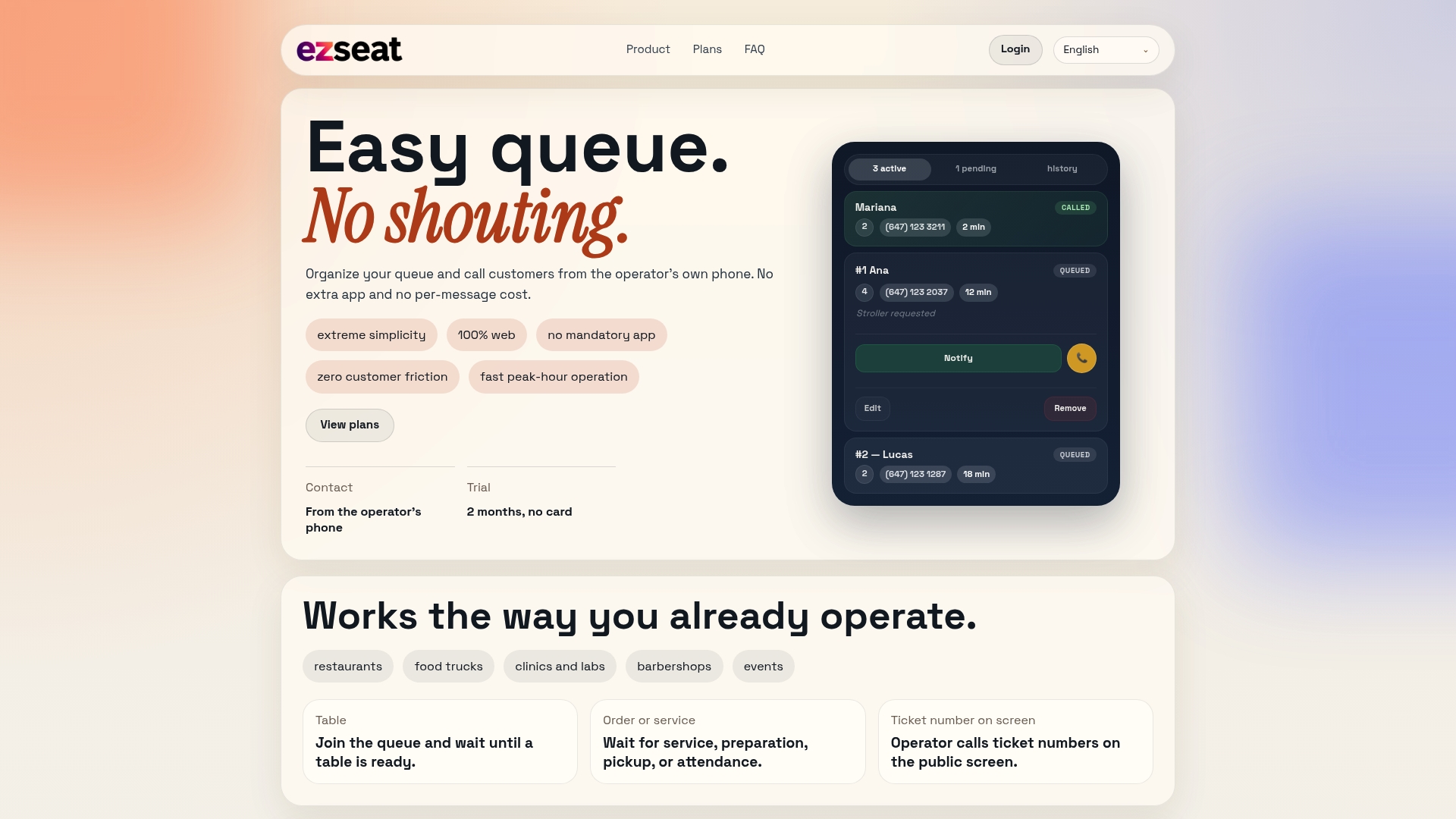
That browser-first approach means you're not locked into a specific screen brand or a proprietary signage dashboard just to change what's on the display. If you're setting up QR-based check-in alongside your screen, the QR Code Waitlist Setup Guide walks through pairing that with your public display, and the Queue Display Screen Guide covers configuration details for the screen itself. If you're weighing QR check-in more broadly, this piece on QR code adoption is worth a look too.
Plans scale with your business, so a single food truck counter and a multi-counter clinic both start on the same simple setup and grow from there. Start a free trial on the Ezseat landing page and get your first display running today.
Sources
- Queue Management Digital Signage: Systems, Displays, and ... - Digital Signage Hub
- How to Choose a Queue System Display – Practical Guide
- How to configure the Waitlist display | Waitwhile Help Center