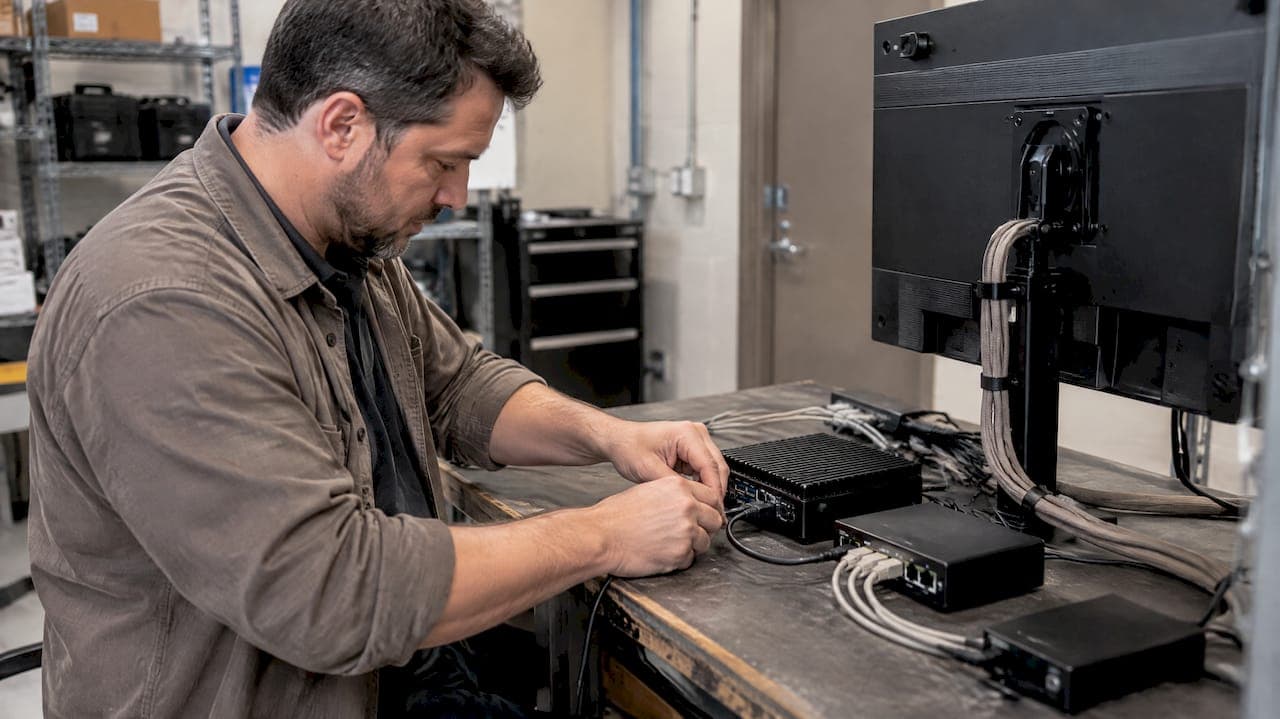
For most service venues, queue display hardware means a touchscreen terminal or kiosk, a ticket printer, a public status display, an industrial mini PC or controller, and a barcode or QR scanner for check-in. The single priority that determines whether the whole setup stays reliable is a secure signage player architecture over HTTPS with outbound-only connections, paired with basic device hardening from day one.
TL;DR:
- Using browser-based queue displays with existing devices like tablets or TVs eliminates the need for dedicated signage hardware in smaller venues.
- Network security depends on outbound-only HTTPS connections and separate VLANs, preventing inbound attacks and reducing exposure.
- Hardware choices should prioritize fanless mini PCs, anti-jam printers, and displays with sufficient resolution and brightness to handle venue conditions.
- Accessibility features such as tactile identifiers, audible feedback, and proper placement are essential to ensure inclusive kiosk operation from the start.
- Regular maintenance routines, including checking printer jams and network connections, can prevent most queue hardware failures and reduce downtime.
Table of Contents
- Key hardware components and their procurement considerations
- Matching display types to your venue's scale
- Integration, networking, and security best practices
- Accessibility, ergonomics, and standards operators should meet
- Selection checklist and sample deployment matrix
- Ezseat practical notes and quick setups
- Maintenance and troubleshooting of queue display hardware
- Power backup and surge protection solutions
- Future-proofing and scalability considerations in hardware choices
- What the conventional hardware advice gets wrong
- A simpler path to queue displays for your business
- FAQ
- Sources
Key hardware components and their procurement considerations
Every queue system rests on a handful of physical modules, and each one has specs worth pinning down before you sign a purchase order.
Touchscreen kiosks are the customer's first touchpoint. Projected capacitive screens hold up better than resistive ones under constant finger and glove use, and you should ask vendors for a rated duty cycle, not just a warranty period. Floor-standing units suit lobbies with heavy foot traffic, while countertop units work for reception desks with staff nearby. Outdoor or semi-outdoor placements need an IP-rated enclosure to handle dust and moisture.
Queue ticket printers come in thermal and dot-matrix formats. Thermal printers are quieter and need less mechanical upkeep, but they depend on heat-sensitive paper that fades over time, which matters if tickets double as receipts. Look for anti-jam sensors, front-loading roll access, and a roll capacity that matches your daily ticket volume so staff aren't swapping paper every few hours.
Industrial mini PCs or controllers run the show behind the scenes. Fanless models are worth prioritizing for continuous public operation, since they reduce the failure modes that moving parts introduce and support the kind of 24/7 reliability a public-facing queue system needs. Confirm the ports you'll actually use: RS-232 for legacy printers, multiple HDMI outputs for multi-screen setups, and enough USB for scanners and peripherals.
- Touchscreen kiosks: match screen technology and mounting style to foot traffic and placement.
- Ticket printers: prioritize anti-jam design, roll capacity, and front-access maintenance.
- Mini PCs and controllers: choose fanless units with the ports your peripherals require.
- Status boards: confirm resolution and bezel size match your viewing distance.
- Scanners: verify barcode or QR read range under your venue's actual lighting.
Counter calling displays and status boards need enough resolution to stay legible from across a waiting area, and a refresh rate fast enough that number changes don't look sluggish. Scanners and payment peripherals round out the setup where check-in or payment is part of the flow, and their read range should be tested against your venue's actual lighting rather than a spec sheet number alone.
Matching display types to your venue's scale
A single screen above a reception desk is enough for most storefronts, clinics, and small restaurants, and it keeps both cost and setup time low. Larger branches, hospitals, or transit hubs often need a video wall, which adds a matrix switcher or video-wall processor to the hardware list along with the extra planning that comes with syncing multiple panels.
- Single screens: lowest cost and complexity, best for one or two queues in view of most of the room.
- Video walls: higher upfront cost but better visibility across large or multi-zone spaces.
- Brightness: match nits to ambient light, higher for windows or outdoor-facing glass.
- Resolution and viewing angle: confirm legibility from the farthest seat in the room.
- HDCP and HDMI version: check compatibility before committing to a content source.
Matrix switchers and processors are the piece operators most often underspec. A capable unit should support several HDMI inputs and outputs, scaling for mismatched source resolutions, and remote control over RS-232 or TCP/IP so IT staff can manage it without walking to the equipment rack. A matrix switcher datasheet is worth requesting from any vendor so you can confirm HDMI version, HDCP compatibility, and multi-layer display management before purchase. Plan cable runs and lengths during the site survey, not after installation, since HDMI signal degrades over long distances without active extenders, and verify EDID handling so the source and display negotiate resolution correctly the first time.
Integration, networking, and security best practices
The network behind your displays matters as much as the displays themselves. The safest architecture has players pulling content over HTTPS on port 443 rather than accepting inbound connections, a pattern digital signage networks use specifically to avoid opening the network to outside traffic. Edge caching reduces how often players need to reach the main server, which also keeps bandwidth needs modest.
- Use outbound-only HTTPS connections for player check-ins, never inbound ports.
- Put displays on a dedicated VLAN, separate from point-of-sale and office systems.
- Restrict player accounts to a sandboxed shell with no general OS access.
- Lock enclosures and use tamper-sensitive mounts in public areas.
- Validate content integrity with signed files and periodic checksum checks.
Physical security deserves equal attention. A kiosk in an open lobby is an easy target for tampering, so locked enclosures, cable locks, and secure wall mounts are worth the modest extra cost. On the software side, signed content packages and checksum validation stop unauthorized files from reaching your players, and a restricted playback shell keeps anyone who gains physical access from reaching the underlying operating system.
Pro Tip: Ask any signage vendor for their network architecture diagram before buying, specifically whether players poll out or wait for inbound commands, since that single detail determines how exposed your network is.
If you handle payments or point-of-sale integration alongside your queue display, review how your telephony and POS systems connect, since misconfigured caller ID or POS links can create the same kind of exposure as an unsecured display player, as covered in this POS and caller-ID integration guide.
Accessibility, ergonomics, and standards operators should meet
Hardware placement determines who can actually use your kiosk. Monitors and touch surfaces need to be positioned so both standing adults and seated or wheelchair users can see and reach them without obstruction, and glare from overhead lighting or windows should be tested at the actual installation angle, not just on a showroom floor.
- Position screens and touch surfaces so they are accessible to both standing and seated users, including wheelchair users. Use tactile identifiers on bezels and buttons to assist users with visual impairment. Provide audible feedback for touch actions, such as tones or spoken prompts, and include a headphone jack as a backup for audio prompts.
Touchscreen usability extends beyond the screen itself. Kiosks should register input from a stylus or prosthetic, not only bare fingertips, and the physical placement of card slots, printers, and audio jacks should follow the kind of guidance found in kiosk accessibility standards, which specify tactile identifiers, audible feedback for touch controls, and appropriate slot placement for self-service machines. Budget time during installation for a short accessibility walkthrough rather than assuming the manufacturer's defaults cover every case.
Selection checklist and sample deployment matrix
Before requesting quotes, work through a short checklist so every vendor is pricing the same scope: expected daily traffic, kiosk duty cycle, printer roll capacity, display brightness for your lighting conditions, network reliability, power backup needs, mounting constraints, and a plan for spare parts.
- Storefront (low traffic): single countertop kiosk, compact thermal printer, one wall-mounted display, basic Wi-Fi.
- Clinic or restaurant (medium traffic): floor kiosk with higher duty cycle, thermal printer with larger roll capacity, dual displays, wired network with UPS backup.
- Large branch or hospital (high traffic): multiple kiosks, high-volume printers, video wall with matrix switcher, dedicated VLAN, redundant network paths.
Total cost of ownership runs well beyond the hardware invoice. Maintenance contracts, spare printer mechanisms, and firmware update plans belong in the budget from the start, since a queue system that goes down during peak hours costs more in frustrated customers than the service contract would have.
Ezseat practical notes and quick setups
Many venues skip custom signage players entirely. A browser-based queue feeding a public screen, the pattern Ezseat uses, removes the player hardware layer altogether. Pairing a web browser with a Chromecast setup or reviewing a no-app display guide gets a working public screen running in an afternoon.
Maintenance and troubleshooting of queue display hardware
Most queue display failures trace back to three sources: printer jams, network dropouts, and display connection faults. A maintenance routine that checks these weekly catches small problems before they become a line of frustrated customers standing in front of a blank screen.
Printers need the most hands-on attention. Keep spare print heads and rollers on hand, since these wear faster than any other component, and train front-line staff to clear simple jams without waiting on IT. For displays, a loose HDMI cable or a failed matrix switcher port is the most common cause of a "blank screen" call, so keeping a spare cable and knowing how to swap a switcher port quickly shortens downtime.
Network issues show up as delayed ticket updates or frozen screens. Since the recommended player architecture pulls content rather than receiving pushed commands, a simple restart of the player device often resolves a stuck connection without needing to touch the server side. Remote monitoring of player health, including disk space, CPU temperature, and uptime, catches failing hardware before it goes down completely, cutting the number of emergency site visits.
Build a short troubleshooting card for staff: check the network light, check the cable, restart the player, then call support. That order resolves most incidents without an IT ticket.

Power backup and surge protection solutions
A queue display that loses power mid-shift creates exactly the chaos the system was meant to prevent, so backup power deserves the same planning as the displays themselves.
An uninterruptible power supply (UPS) sized for your kiosk, printer, and controller keeps the system running through short outages and gives you time for a clean shutdown during longer ones, which protects both the hardware and any unsaved transaction data. Surge protection matters just as much in regions with unstable grid power or frequent lightning activity, since a single power spike can take out a mini PC's motherboard or a display's power board in an instant.

For multi-display setups or video walls, a centralized UPS at the equipment rack is usually more practical than individual units at each screen, and it simplifies maintenance since there's one battery system to monitor and replace instead of several. Pair that with surge-protected power strips at each kiosk and display, particularly in older buildings where wiring quality is inconsistent.
Test your backup power on a schedule, not just when you install it. A UPS battery degrades over a few years, and the first time you discover that is during an actual outage is the worst possible time to find out.
Future-proofing and scalability considerations in hardware choices
Buying hardware for today's traffic alone is a common mistake. A kiosk or controller that just barely handles current volume leaves no room for a busy season, a new location, or an added queue line without a full hardware refresh.
Choose mini PCs and controllers with more ports than you currently need, since adding a second display or a payment terminal later is far cheaper than replacing the controller entirely. The same logic applies to network capacity: a dedicated VLAN sized for your current displays should have headroom for additional kiosks or signage zones without a redesign.
Software flexibility matters as much as hardware headroom. A queue management system that can add new queue types, locations, or display formats without a hardware swap protects your initial investment as the business grows. Web-based queue platforms sidestep much of this concern, since adding a screen often means pointing a browser at a URL rather than installing new signage software.
Plan for a three to five year hardware refresh cycle rather than treating any purchase as permanent. Fanless mini PCs and industrial-grade kiosks tend to outlast consumer-grade equivalents, which makes the slightly higher upfront cost worth it for anything running continuously in public view.
What the conventional hardware advice gets wrong
Most buying guides treat queue display hardware as a checklist of screens and printers, when the real point of failure is almost always the network architecture connecting them. An operator can buy the best kiosk on the market and still end up with a flaky, insecure system if the signage player accepts inbound connections or sits on the same network as point-of-sale terminals.
The accessibility conversation gets shortchanged too. It's treated as a compliance afterthought rather than a hardware decision that affects screen height, touch sensitivity, and audio design from the first spec sheet. Retrofitting accessibility after installation costs more than building it in from the start.
If there's one thing to prioritize first, it's deciding how much custom hardware you actually need. A browser-based display pattern eliminates an entire category of player security and maintenance headaches that most guides treat as unavoidable. For a lot of small and mid-size venues, that is the more defensible starting point, not the industrial mini PC and matrix switcher setup built for a hospital.
— Ezseat
A simpler path to queue displays for your business
Ezseat runs on browsers instead of custom signage players, so a public screen can be set up with a tablet, a smart TV, or a Chromecast rather than an industrial mini PC and a matrix switcher. Customers join the queue from their own phone, which cuts the kiosk and ticket printer out of the equation entirely for many venues.
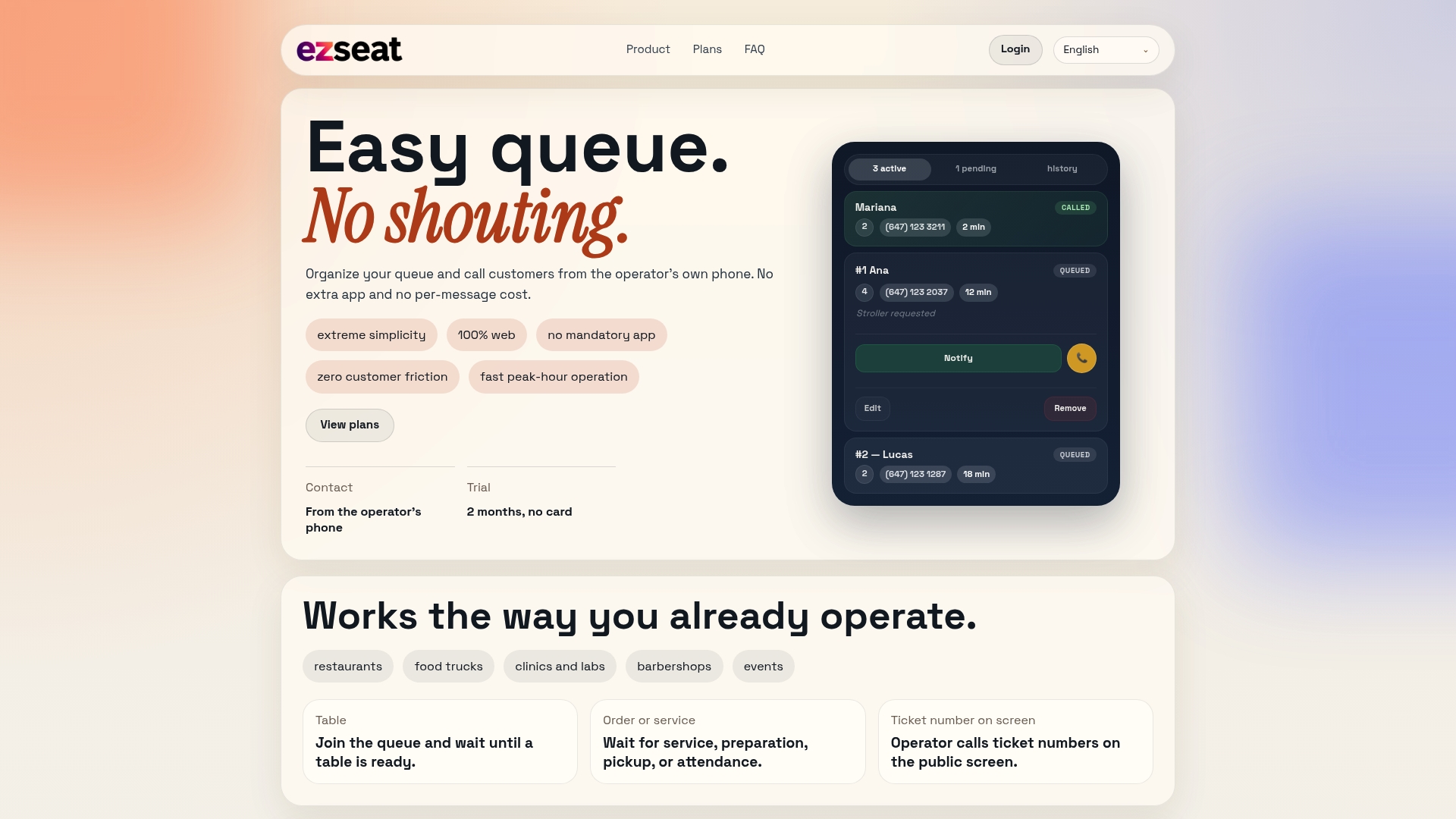
- No app installation for customers or staff, just a web browser.
- Public screens that update in real time without a dedicated signage player.
- Plans that scale with your business, from a single counter to multiple queues.
If your venue doesn't need a full hardware buildout, a free trial on Ezseat is the fastest way to see whether a browser-based setup covers your queue without the equipment list above.
FAQ
What hardware do I need to start a queue display system?
At minimum, you need a way to display ticket numbers, which can be as simple as a single screen and a browser-based queue tool, or as involved as a kiosk, ticket printer, and controller for larger venues. Match the hardware to your traffic volume rather than buying for the busiest day you can imagine.
What are the three main components of a queuing system?
Most queuing systems break down into an entry point for joining the line, a management layer that tracks and calls numbers, and a display that shows current status to waiting customers. Hardware implementations of this vary from paper tickets and a public board to full kiosk and video-wall setups.
How do I keep queue display networks secure?
Run display players as outbound-only clients over HTTPS on port 443 rather than accepting inbound connections, and place them on a dedicated VLAN separate from point-of-sale or office systems. Add device hardening like locked enclosures and restricted playback shells to limit physical and software tampering.
What is queue display hardware used for?
Queue display hardware shows customers their position or ticket number in a waiting line, reducing the need for staff to call names or numbers aloud. It typically pairs a public screen or video wall with a kiosk, printer, or software system that manages the underlying queue.
Does Ezseat require special display hardware?
No, Ezseat is built to work through a standard web browser on existing screens, tablets, or devices like Chromecast, which removes the need for a dedicated signage player or kiosk in most setups. Pricing starts at $3.90 per month for the Light plan or $14.90 per month for the Pro plan.
Sources
- Queue management system hardware solutions (SNRO printer)
- Implementation guide regarding automated self-service kiosks (Canadian government kiosk guide)
- How does fanless design enhance mini PC reliability and stability?