
You have two real options for getting your waitlist up on a TV: cast a browser tab from Chrome for a quick test, or run the queue page directly on the display device for something that survives Friday night rush without babysitting. Casting from Chrome works quickly. Running the page on a Chromecast with Google TV or an Android signage app is what you want for a screen that stays on all day, every day, without a staff member checking on it.
Either way, the requirements are the same:
- A Chromecast or Chromecast with Google TV
- The sender device and the Chromecast on the same Wi-Fi network
- An updated Chrome browser, or a signage app if you're skipping the sender entirely
A browser-based queue dashboard like Ezseat works with both setups since it's just a web page, no app install required on either end.
Key Takeaways
Running a queue page directly on a Chromecast with Google TV or a signage app is more reliable for all-day display than casting from a Chrome tab, which works best for quick tests.
| Point | Details |
|---|---|
| Same Wi-Fi is mandatory | Sender and Chromecast must be on the same network, and guest networks with client isolation will block the connection. |
| Cast-only has limits | Chrome tab casting is fast to test but prone to disconnects, so avoid it for unattended, all-day displays. |
| Device-run wins for production | Chromecast with Google TV or an Android signage app auto-launches and resumes without a dedicated sender PC. |
| Design for distance | Large ticket numbers, high contrast, and minimal extra text keep the display readable from typical standing distance. |
| Ezseat handles the dashboard | Ezseat's browser-based queue view works with either casting method and needs no customer app download. |
Table of Contents
- What Is a Chromecast Queue Display, and Which Setup Should You Use?
- Quick Test: How to Cast Your Queue Dashboard From Chrome
- Production Setup: Run the Queue Page Directly on the TV Device
- Dashboard Design: What Actually Reads From Across the Room
- Keeping the Display Stable for Unattended Hours
- Troubleshooting the Usual Casting and Display Problems
- Starter Checklist: A 30-Minute Plan to Go Live
- Supported Media Types and Formats for Queue Display
- Managing the Queue List: Adding, Removing, and Rearranging Entries
- User Interaction Options During Casting and Display
- Latency and Buffering: What's Different About a Live Queue
- Integrating With Other Playlist and Scheduling Tools
- Security and Privacy When Displaying Customer Queues Publicly
- How a Browser-Based Queue Dashboard Cuts Friction in Busy Venues
- See How Ezseat Fits Into Your TV Display Setup
- Sources
What Is a Chromecast Queue Display, and Which Setup Should You Use?
A chromecast queue display is simply your customer waitlist or ticket numbers shown on a TV, cast or run from a browser-based queue dashboard instead of a paper list or a staff member shouting names. The industry term for the hardware side of this is digital signage, and once you know that phrase, half the troubleshooting guides online suddenly make sense. Retailers and clinics have used digital signage for menu boards and directories for years. Applying it to a live queue is newer, and it comes with its own quirks around refresh rates and session stability that a static menu board never has to deal with.
Quick Test: How to Cast Your Queue Dashboard From Chrome
Before you commit to hardware, test the concept with what's already in your office. This takes a few minutes and tells you immediately whether your Wi-Fi and TV can handle a live dashboard.
Run through this checklist first:
- Update Chrome to the latest version on the sending computer.
- Connect that computer and your Chromecast to the same Wi-Fi network. This is the single most common point of failure, so check it twice.
- Open your queue dashboard URL in a Chrome tab.
- Press F11 to make the tab full-screen before you cast, so browser toolbars don't clutter the display.
- Click the three-dot menu, choose Cast, and select your Chromecast device.
- If you want to mirror the entire screen instead of just the tab, go to Sources in the cast panel and switch to "Cast screen." This method works well because Chrome exposes a dedicated cast icon once the sender and receiver connect, which confirms the link is live before you walk away.
Casting a single tab is fast, but it comes with real limits: sessions disconnect if the sender computer sleeps or updates, and someone can accidentally close the tab or the whole browser window. This setup is fine for testing an idea over a weekend. It's a poor fit for a screen you expect to run unattended for ten hours a day.
If the cast doesn't connect, click the cast icon to confirm status, restart the Chromecast, check your router's signal strength near the TV, and if a tab cast keeps failing, try switching to "Cast screen" instead.
Pro Tip: Keep the sender laptop plugged into power and set its sleep timer to "Never" while displaying. A laptop that dims and locks mid shift is the number one reason a working cast dies during lunch rush.
Production Setup: Run the Queue Page Directly on the TV Device
Once you know the dashboard works, move away from the cast-only model. Running the page on the display device itself, rather than streaming it from a separate computer, removes the single point of failure that a sender PC represents. The device launches the page on its own, resumes after power blips, and needs no dedicated laptop parked behind the counter.
This device-run approach is more reliable for unattended signage because it avoids the session drops and constant-connection requirement that plague cast-only setups. A handful of device types support it:
- Chromecast with Google TV, which can run apps directly rather than only receiving a cast
- Android TV boxes from various manufacturers
- Smart TVs with built in Android or Google Play support
Setting it up typically means installing a signage player app, registering the display, and pointing it at your queue URL. Players such as Rise Vision let you install directly on a Chromecast or Android TV device, register the screen, and configure refresh intervals and scheduling so the dashboard reloads on its own timetable rather than going stale.
If you have development resources, a custom Cast receiver app or a whitelisted receiver gives you a cleaner, fully branded display with no browser chrome at all. That's an advanced option most small operators can skip, but worth knowing exists if you outgrow off-the-shelf signage players.
Dashboard Design: What Actually Reads From Across the Room
A queue screen only works if someone waiting by the door can read it without walking closer. That means resisting the urge to cram in every field your software offers.
Keep the display down to a large ticket number and maybe one status word ("Ready," "Now Serving"). Extra columns like phone numbers or timestamps just add visual noise that are not needed at a glance. Dashboard clarity depends on prioritizing a big numeric display, minimal text, and strong contrast, especially for venues where people are standing several feet from the screen.
- Use dark text on light backgrounds, or the reverse, never mid-tone colors that wash out under bright ceiling lights
- Avoid thin fonts; bold, wide characters hold up better at a distance
- If you're showing a QR code for self-service joining, size it generously and place it away from screen edges so it stays scannable from typical standing distance
Pro Tip: Test your dashboard by standing at your farthest customer seating spot and reading it cold. If you have to squint, your customers will too.
Ezseat's queue display screen guide has layout templates built around exactly this kind of at-a-distance readability, and its QR code waitlist setup guide covers sizing rules specific to self-join codes.
Keeping the Display Stable for Unattended Hours
A queue screen that goes dark mid-shift is worse than no screen at all, because customers start assuming nobody's tracking the line. Three habits keep that from happening.
- Enable kiosk or fullscreen mode on the device and disable sleep settings, so nothing interrupts the display automatically
- Set a refresh interval appropriate to how often your queue actually changes, usually every 30 to 60 seconds for a busy counter
- Build in a fallback page or a cached "Please see the front desk" message for the rare case the dashboard can't be reached
For advanced setups, community tools like the Continuously Casting Dashboards integration for Home Assistant auto-resume a dashboard after an interruption, and can detect when other media is actively playing on a device and wait until it's idle before forcing a restart, which avoids yanking the screen away from a video mid-playback.
Troubleshooting the Usual Casting and Display Problems
Most queue display failures trace back to one of four causes, so work through them in this order:
- Network isolation. Confirm the sender and receiver sit on the same Wi-Fi network, and that the network doesn't have client isolation enabled, a setting some guest networks use by default that silently blocks casting.
- Frequent disconnects. If a cast session drops every hour or so, that's a sign you've outgrown cast-only and need a device-run setup, or at minimum a dedicated sender PC that never sleeps.
- TV limitations. Older smart TVs without tab mirroring support need a Chromecast dongle or an Android TV player plugged in, since their built-in browsers usually can't handle a live dashboard well.
- Custom receiver errors. If you're running a whitelisted or custom Cast receiver, verify the URL is served over HTTPS with a valid certificate. An expired certificate or an HTTP-only URL is a common silent failure.
Starter Checklist: A 30-Minute Plan to Go Live
Once you've decided on device-run signage, here's the fast path to a working screen:
- Buy a Chromecast with Google TV (or confirm your Android TV box works), an HDMI cable, and verify your Wi-Fi reaches the display location.
- Connect the device to Wi-Fi, then either install a signage app or open Chrome directly to test-cast your queue URL.
- Add your queue dashboard's URL, set it to full-screen, and check that ticket numbers are legible from your farthest seating area.
- Run an acceptance test: confirm auto-refresh is working, simulate a peak join flow to watch numbers update live, and configure auto-resume so the screen recovers on its own after a power blip or Wi-Fi drop.
Supported Media Types and Formats for Queue Display
A queue dashboard is fundamentally a live web page, not a video file, so the "media type" question looks different here than it does for casting a movie. What you're displaying is HTML, CSS, and JavaScript rendering in real time, pulling ticket numbers and status updates from your queue software's backend.
That distinction matters for compatibility. You don't need to worry about codecs, resolution mismatches, or file formats the way you would with a photo slideshow or a promotional video loop. Any modern browser or signage player that can render a standard web page can display a queue dashboard, whether it's built on Chrome, a Chromium-based signage app, or a smart TV's built-in browser.
Some operators mix in secondary content, a promotional slideshow between queue updates, or a static welcome image before the day's first ticket. If you're layering in images or short video loops alongside the live queue, stick to common web formats: JPEG or PNG for static images, and MP4 with H.264 encoding for any video segments, since those play back reliably across nearly every signage player and smart TV browser without extra plugins.
The one format rule worth remembering: keep the queue page itself lightweight. A dashboard bloated with high-resolution background images or auto-playing video can slow down refresh cycles on lower-powered signage devices, which defeats the purpose of a live display.
Managing the Queue List: Adding, Removing, and Rearranging Entries
The display itself only shows what's happening in your queue management software, so the real work of adding, removing, and reordering entries happens on your phone, tablet, or front-desk computer, not on the TV.
A staff member adds a customer to the line, either by typing them in manually or letting the customer join through a browser link or QR code. From there, the operator's view typically lets you adjust the queue order, mark no-shows, or split a queue into separate lines for different service types.

The dashboard reflects these changes automatically as long as its refresh interval is short enough to catch up quickly, usually within the 30 to 60 second window mentioned earlier. Rearranging the order doesn't require touching the TV at all. You do it from the management interface, and the public display simply catches the update on its next refresh cycle.
This separation, one interface for staff to manage, one screen for customers to view, is what keeps a queue system usable during a rush. Nobody's walking over to the TV to fix a mistake; they're fixing it from the counter while the line keeps moving.
User Interaction Options During Casting and Display
Once the queue is up on the TV, interaction generally splits into two groups: what the customer does, and what staff does.
Customers interact with the queue almost entirely through their own phones, scanning a QR code shown on-screen to join, or clicking a browser link sent by text, rather than touching the TV or a public kiosk. This is the entire point of a browser-based join flow: no app to download, no keypad to fumble with in a crowded lobby.
Staff interaction depends on the setup. A cast-only Chrome session gives you basic remote control through the sending computer, since you're literally driving a browser tab that happens to be mirrored to the TV. A device-run signage app usually comes with its own remote or companion app for adjusting settings, refresh rates, or swapping the displayed URL without walking up to the TV and using its physical remote.
Voice commands play a smaller role here than they do with typical media casting. Asking a voice assistant to "cast the queue" isn't a standard workflow the way "play a song" is, mostly because a queue dashboard is a specific internal tool, not content indexed for voice discovery. Most operators find it faster to just keep a bookmarked link on the sender device or configure the signage app to auto-launch the URL on boot, skipping voice control entirely.
Latency and Buffering: What's Different About a Live Queue
Buffering, in the traditional casting sense, mostly deals with the delay a video needs to load; it barely applies here since a queue dashboard isn't streaming video content. The real concern for a live queue display is refresh latency: the gap between a staff member updating a ticket status and that change showing up on the TV.

Most queue dashboards refresh on a set interval rather than pushing instant updates, so there's an inherent delay of anywhere from a few seconds to a full minute depending on how the refresh is configured. Set that interval too long, and customers see stale numbers, which causes confusion when someone's ticket gets called before the screen catches up. Set it too short, and you risk taxing a weak Wi-Fi connection or an older signage device that struggles to reload the page that frequently.
The fix is matching refresh frequency to actual queue speed. A barbershop moving through a haircut every 20 to 30 minutes doesn't need a five-second refresh; a food truck with rapid order turnover during lunch rush probably does. Network quality matters here more than device horsepower. A congested Wi-Fi network, especially one shared with guest internet at a busy restaurant, introduces its own lag on top of whatever refresh interval you've set, which is why isolating your signage device on a dedicated network segment, when your router supports it, tends to smooth things out considerably.
Integrating With Other Playlist and Scheduling Tools
Businesses running digital signage often want the queue dashboard to share screen time with other content: promotional slides, menu boards, or a welcome message during slow hours. This is where playlist management tools come into the picture, sitting alongside your queue software rather than replacing it.
Signage players like Rise Vision, mentioned earlier for device-run setups, typically support scheduling multiple content sources on rotation, so your queue page might show for most of the day but hand off to a promotional slide during a planned lull. The integration point is usually straightforward: the signage player treats your queue URL as one "asset" in its rotation, refreshing it on its own schedule alongside static images or video content.
Restaurant operators juggling reservations alongside walk-in queues sometimes run a reservation management system in parallel with their queue display, since the two solve related but distinct problems. Coordinating both on one screen usually means picking a signage player that supports multiple browser sources or a split-screen layout, rather than trying to force one piece of software to do both jobs.
The practical advice here is to keep integrations simple. A queue dashboard that has to sync with three other tools introduces three more points of failure. If your signage player can just treat the queue URL as a dedicated always-on zone of the screen, do that before reaching for a more complex multi-source setup.
Security and Privacy When Displaying Customer Queues Publicly
Putting customer information on a public screen raises a real question: what should actually be visible? Ticket numbers are generally safe to display, since they're just sequential digits with no personal information attached. First names alone carry more risk, particularly in smaller communities or clinic settings where a first name combined with an obvious wait context could inadvertently signal something a patient would rather keep private.
Most operators sidestep this entirely by displaying ticket numbers only, with customers matching their own number against a printed slip or a text notification rather than seeing their name on the wall. This is standard practice in clinics and government offices for exactly this reason.
On the technical side, run your queue dashboard over HTTPS if you're using any kind of custom receiver setup, since an unencrypted connection served without a valid certificate is a common point of failure for custom Cast receivers and also, less obviously, a privacy gap if the connection can be intercepted on an open network. Keep your queue management login separate from the display device's access, so a compromised or stolen signage device doesn't hand over the keys to your actual customer data. The screen only needs to read the public queue view, not your full administrative dashboard.
How a Browser-Based Queue Dashboard Cuts Friction in Busy Venues
Removing the app-install step changes the math on queue adoption entirely. A customer who has to download something before joining a line will often just walk away instead, especially at a food truck or a busy clinic where patience runs thin. A browser link or a QR code removes that barrier completely.
Operationally, that translates into fewer interruptions for staff, since nobody's fielding "the app won't install" questions during a lunch rush, and a simpler workflow overall. The result tends to show up most clearly during peak hours, when a queue that just works lets one staff member handle intake and boarding a public display without splitting attention across a dozen small tech problems.
— Ezseat
See How Ezseat Fits Into Your TV Display Setup
Everything covered above, the casting steps, the signage apps, the design rules, works because the queue dashboard underneath it is just a web page. Ezseat is built to be that web page: customers join through a browser link or a QR code with no app download, and the public display view shows clean, large ticket numbers designed for exactly the distance and lighting problems covered earlier.
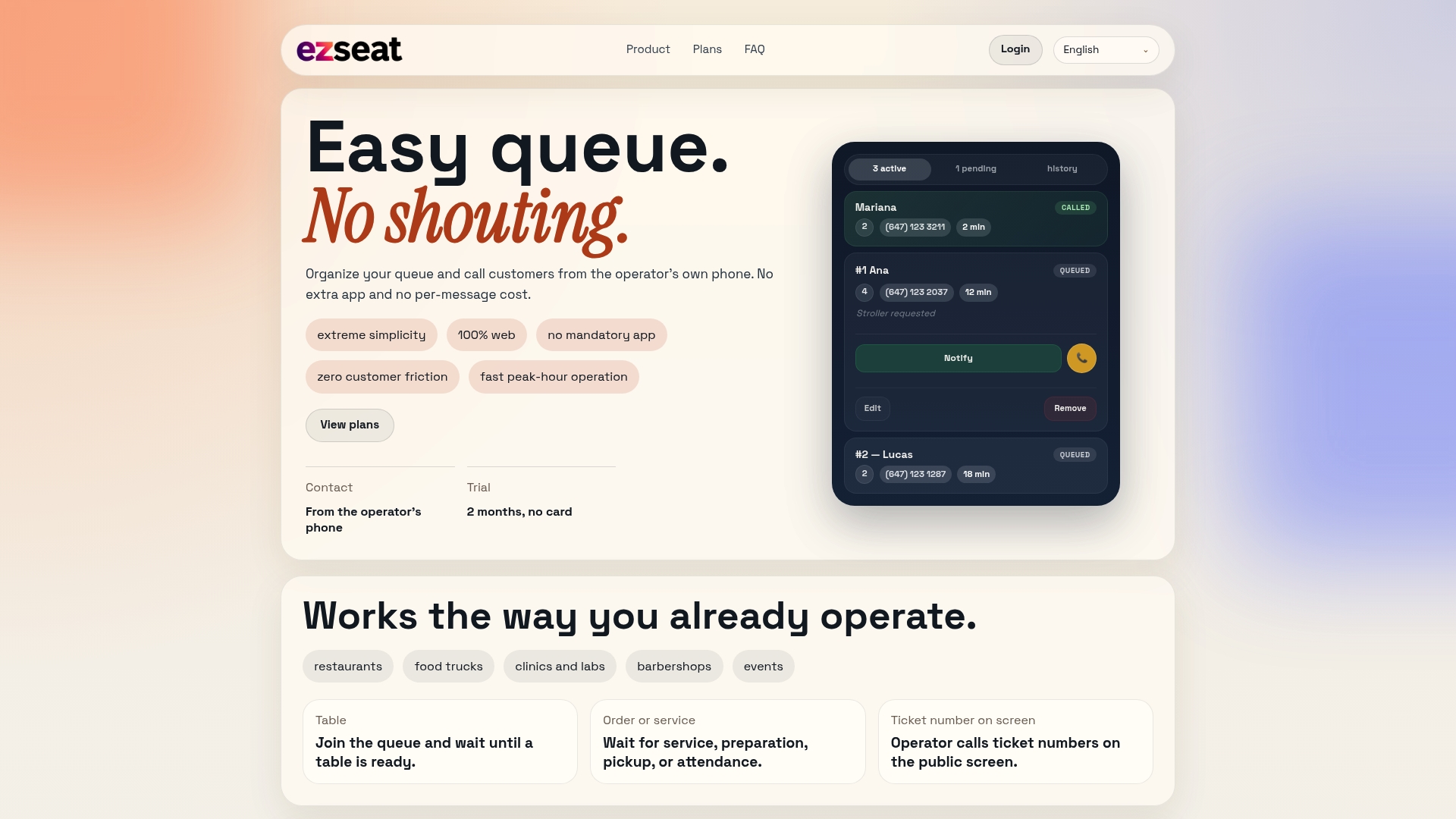
The platform supports multi-device management, so the same queue that's showing on your lobby TV is also live on the tablet at your front desk and the phone in your back pocket. That means whichever casting method you land on, a quick Chrome test today or a full device-run signage setup next month, the underlying dashboard doesn't change. It scales with you during a slow Tuesday and during a Saturday rush without needing a different tool for either.
Ezseat offers a free two-month trial before any Light or Pro plan billing kicks in, so you can run the exact setup described in this guide, test it on your actual TV, and confirm it holds up before spending a dollar. Start your free trial and get your first display running today.
Sources
- Cast from Chrome to your TV - Streaming Help
- Chromecast Digital Signage: What Works and What to Avoid | Screen Keep
- Continuously Casting Dashboards (Home Assistant integration)
- How to Use Chromecast with Google TV for Digital Signage | Rise Vision