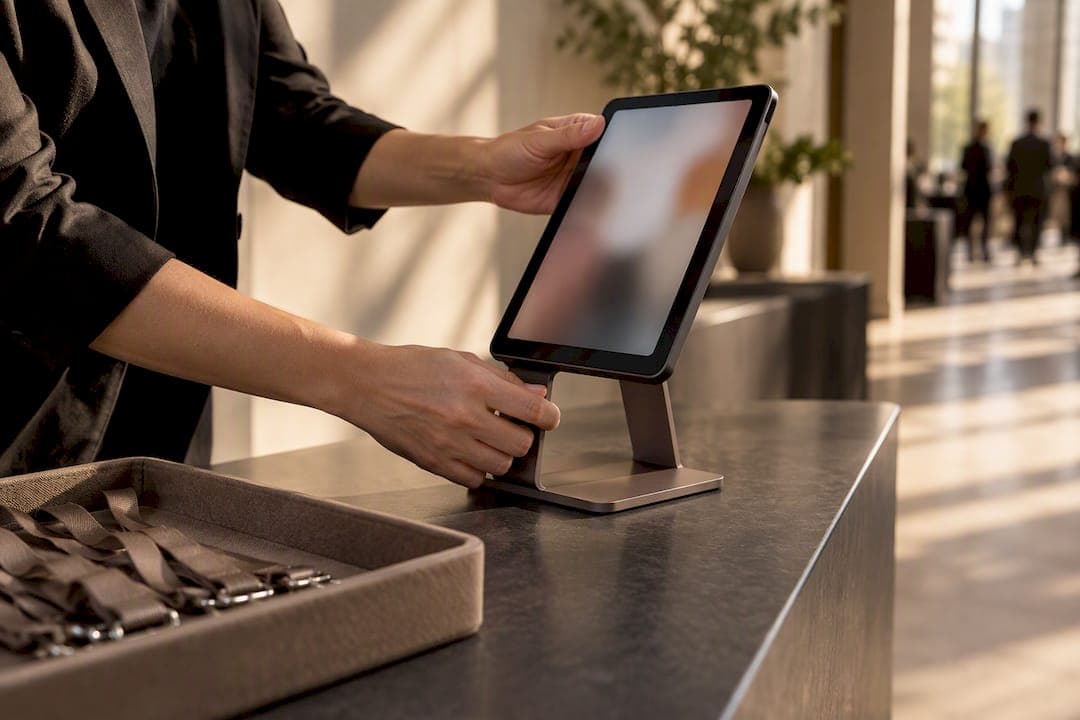
You need a tablet or all-in-one kiosk, a stand or enclosure, a thermal badge or label printer, a barcode or QR scanner, reliable power and network, and the kiosk app or browser locked into kiosk mode. A single kiosk with pre-configured software typically takes a few hours to set up. Accessibility checks and live testing come before any kiosk goes in front of attendees.
TL;DR:
- Choosing all-in-one kiosks with integrated peripherals can cut setup time and streamline high-volume check-in processes.
- Locking devices into kiosk mode and verifying HTTPS access ensures security and reliable data synchronization during public events.
- Proper placement, adjustable height, and accessible design prevent bottlenecks, lines, and meet compliance for wheelchair users.
- Scaling a kiosk operation relies more on printer throughput and network performance than on the number of kiosks.
- Running thorough pre-event tests of all hardware and connectivity helps avoid common issues like paper jams and Wi-Fi dropouts.
Table of Contents
- Choosing the right hardware and peripherals for your venue
- Locking down kiosk mode and setting security defaults
- A step-by-step checklist for deploying each kiosk
- Placing kiosks where attendees can actually use them
- Sizing your kiosk count for peak arrivals
- Testing and running kiosks without event-day surprises
- How a browser-first system like Ezseat pairs with your kiosks
- Quick wins and mistakes worth avoiding
- Pilot Ezseat on your next kiosk deployment
- Sources
- FAQ
Choosing the right hardware and peripherals for your venue
The tablet versus dedicated kiosk decision comes down to volume and budget. A tablet on a stand costs less and packs into a case at the end of the night, which suits pop-up events or single-day conferences. Pick a 9 to 12-inch screen for simple name lookup and check-in; larger displays are preferable when the workflow includes forms, waivers, or multi-step registration.
All-in-one kiosks make sense for high-volume or badge-heavy deployments. These units often ship with an integrated barcode scanner, NFC reader, camera, and label printer already tested together, which cuts setup time for repeat events or multi-site rollouts.
Peripheral choices matter as much as the screen:
- Thermal or label printers for badges print faster and cheaper per unit than ink-jet, and many kiosk-grade units support PoE for simpler cabling.
- A 1D/2D barcode scanner handles both older barcodes and modern QR pre-registration codes.
- A camera adds photo capture for security badges or access control.
- An NFC or card reader supports tap-based access where the event needs it.
Power over Ethernet reduces cable clutter and adds a layer of reliability over Wi-Fi alone, and a surge protector at each kiosk is cheap insurance against a blown outlet during a busy weekend.
Pro Tip: Order one spare printer and one spare scanner per five kiosks: a single failed peripheral shouldn't take a whole check-in lane offline.
Locking down kiosk mode and setting security defaults
Kiosk mode restricts a tablet or PC to a single app or browser window, blocking access to settings, other apps, or the home screen. It is not optional for a public-facing device: without it, a curious attendee can back out of the check-in screen and into the operating system.
For browser-based check-in, Chrome and Edge both support kiosk mode with managed device policies, and either works fine for a lightweight, web-driven check-in flow. Native apps offer more control over hardware peripherals but require more setup per device.
A short security checklist for every kiosk:
- Disable password saving and autofill in the browser.
- Turn on device encryption (BitLocker on Windows, or the equivalent on your OS).
- Confirm outbound HTTPS on port 443 is open, since most kiosk software depends on it to sync data.
- Set data capture to opt-in and define a retention window before the event, not after.
The OTC Kiosk Tablet system requirements guide specifies that kiosk deployments verify browser and OS compatibility, enable kiosk-mode browser settings, and confirm HTTPS access over port 443 before going live, a baseline worth applying to any public kiosk regardless of vendor.
A step-by-step checklist for deploying each kiosk
- Run a site survey: confirm power outlets, network drops or Wi-Fi coverage, floor plan, and sightlines to staff.
- Inventory every unit before install day: tablets or kiosks, stands, printers, scanners, cables, surge protectors.
- Mount the stand or enclosure and secure the tablet or kiosk to it.
- Route cables along walls or under mats and attach surge protection at the outlet.
- Connect and test the printer with a sample badge, then pair and test the barcode scanner.
- Prefer a wired or PoE connection over Wi-Fi; where wired isn't possible, confirm the network allows outbound HTTPS on port 443 and has no captive portal blocking the kiosk app.
- Load the kiosk URL or app, enable kiosk mode, and set the default screen and an idle timeout.
- Add a handful of test accounts or QR codes and confirm they resolve correctly.
- Run 10 to 20 test check-ins that include badge printing and host notifications end to end.
Pro Tip: Test the full loop, from QR scan to printed badge to host alert, not just the individual pieces: a scanner and printer can each work fine alone and still fail together.
Placing kiosks where attendees can actually use them
Kiosk placement decides whether a smooth setup still creates a line. Keep kiosks out of doorways and other chokepoints, position them so staff keep a clear sightline for troubleshooting, and follow the room's natural arrival path instead of fighting it.
Accessibility isn't a separate concern from placement, it's part of it. Height-adjustable stands, tiltable displays, tactile keypads, and audio jacks are standard solutions for meeting reach and height guidance for wheelchair users. A service like AccessWiser can help audit kiosk interfaces for broader compliance if your event runs kiosks regularly.
A short placement list:
- Keep cable runs against walls and under mats, never across walkways.
- Leave clear floor space in front of each kiosk for wheelchair approach.
- Angle screens away from direct sunlight or overhead glare that washes out the display.
- Position printers within easy reach of staff for quick paper changes.
Sizing your kiosk count for peak arrivals
Start by timing an average check-in, scan, lookup, and badge print included, then divide your expected peak arrivals per minute by what one kiosk can handle in that time. A kiosk averaging around 20 seconds per check-in handles a few attendees per minute; plan for multiple kiosks to match peak arrival rates accordingly.

Printing is usually the bottleneck, not the screen. Separating the badge printer from the touchscreen kiosk, so one printer serves multiple kiosks or a dedicated print station handles overflow, cuts per-kiosk wait time during rushes.
A few mitigations worth building in:
- Push QR pre-registration so returning attendees skip lookup entirely.
- Open an express lane for pre-registered guests only.
- Watch printer queues and network latency as your real scaling limits, not just kiosk count.
Testing and running kiosks without event-day surprises
- Before doors open, simulate a power loss, print a sample badge, test the camera and scanner, and confirm host notifications actually arrive.
- During the event, keep a short fix list handy: paper jams, Wi-Fi dropouts, and kiosk escape (a user backing out of the locked app) are the most common issues, and each has a quick restart-and-relock fix.
- Assign one staff member to monitor kiosks, keep spare paper and a spare scanner onsite, and log any incident for a post-event review of visitor records and retention cleanup.
For network hiccups specifically, quick POS network troubleshooting steps built for shift managers translate well to kiosk connectivity problems.
How a browser-first system like Ezseat pairs with your kiosks
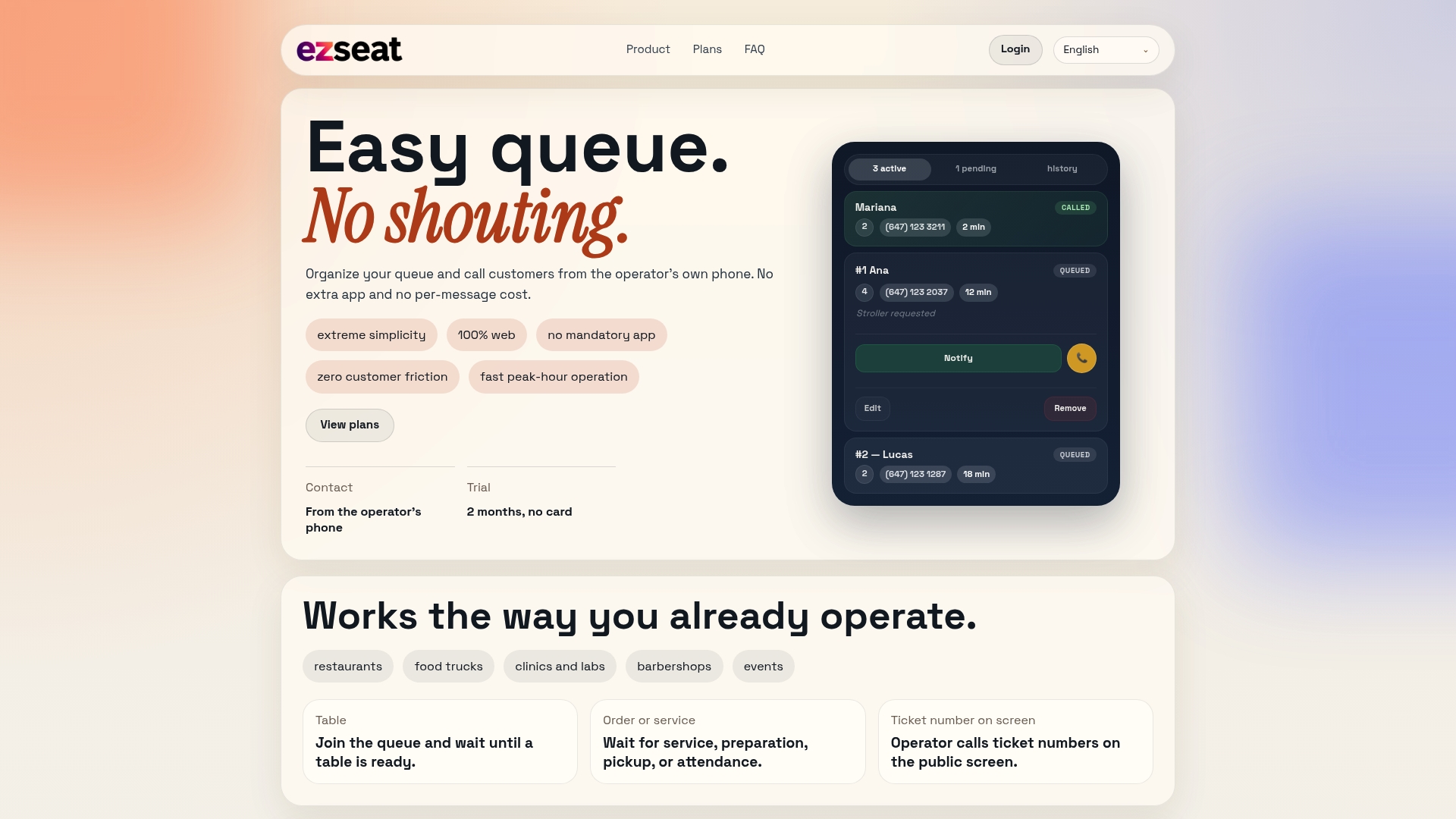
Ezseat runs entirely in a browser, so attendees join a queue or complete check-in without installing anything, which pairs naturally with a tablet locked in kiosk mode. Pair it with a ticket display screen for public queue numbers and host notifications sent straight to staff phones, no separate hardware required beyond the kiosk itself.

Quick wins and mistakes worth avoiding
The three mistakes I see most: picking a receipt printer instead of a badge-rated thermal printer, provisioning one kiosk for a line that needed three, and skipping accessibility checks until a complaint forces the issue. Run a staffed dry-run first, stock spare supplies, and lean on QR pre-registration.
— Ezseat
Pilot Ezseat on your next kiosk deployment
Attendees scan a QR code and join your queue from their own phone's browser, no app download, so your kiosk becomes one more entry point instead of the only one. Ezseat's plans start with a free two-month trial before moving to the Light or Pro tier, letting you pilot one kiosk before committing across a venue.
Try Ezseat free for two months and see how it fits your check-in flow at Ezseat.
Sources
- Technology considerations: ADA-compliant kiosk | Advanced Kiosks
- 21.5″ Visitor Management Desktop Kiosk X6413E | Faytech NA
- OTC Kiosk Tablet system requirements guide | Fiscal Treasury (OTCnet)
FAQ
How much does a check-in kiosk cost?
Costs vary widely by hardware tier, from a basic tablet-and-stand setup to a pre-integrated all-in-one unit with a badge printer and scanners built in. Pricing depends on your printer choice, peripheral count, and whether you buy a purpose-built kiosk or assemble one from separate parts.
What are the 7 types of kiosks?
Common categories include self-service check-in kiosks, ticketing kiosks, wayfinding kiosks, ordering or vending kiosks, information kiosks, photo or badge kiosks, and employment or HR kiosks. Definitions vary by industry, so the exact list depends on the source and the use case.
How much does it cost to set up a kiosk?
Setup cost includes the hardware itself plus labor for mounting, cabling, and configuring peripherals like printers and scanners. A pre-integrated kiosk with tested peripheral combinations often reduces installation time and electrician costs compared to assembling separate components, according to Faytech's kiosk documentation.
How does a check-in kiosk work?
An attendee scans a QR code or enters details on a touchscreen, the kiosk looks up their record, and a connected printer produces a badge while the system notifies host staff. A browser-based system like Ezseat can run this flow without installing a dedicated app on the kiosk or the attendee's phone.