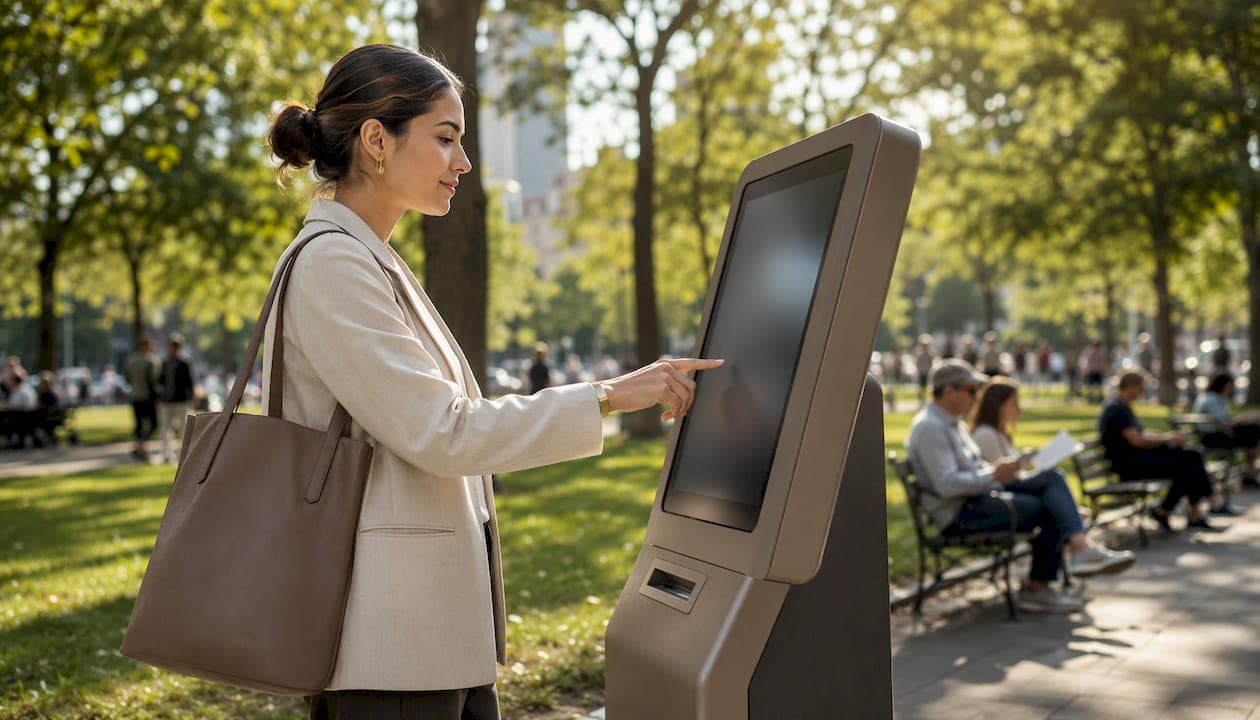
A kiosk check-in is an on-site self-registration point where customers log themselves in via a touchscreen, tablet, or browser link, and staff get notified automatically. For most small venues, the simplest setup that actually works is a browser-based check-in paired with SMS notifications, a public display for queue status, and one staffed fallback position for edge cases. No dedicated hardware required to start.
Four elements make or break any self service check-in deployment:
- Browser entry: customers scan a QR code or type a short URL, no app download needed
- Notifications: SMS alerts or a public display screen tells customers when they're up
- Integration: the kiosk feeds directly into your POS or scheduling system
- Staffed fallback: one team member handles group bookings, tech errors, and accessibility needs
Clinics adding a self check-in kiosk should flag HIPAA early in planning. Any venue collecting card data at the kiosk needs PCI-compliant tokenization. Both are addressed in the compliance section below.
Table of Contents
- What does "kiosk check-in" actually cover?
- Why a self-service check-in system pays off quickly
- What features should you require from check-in kiosk software?
- Hardware vs. software: which setup fits your venue?
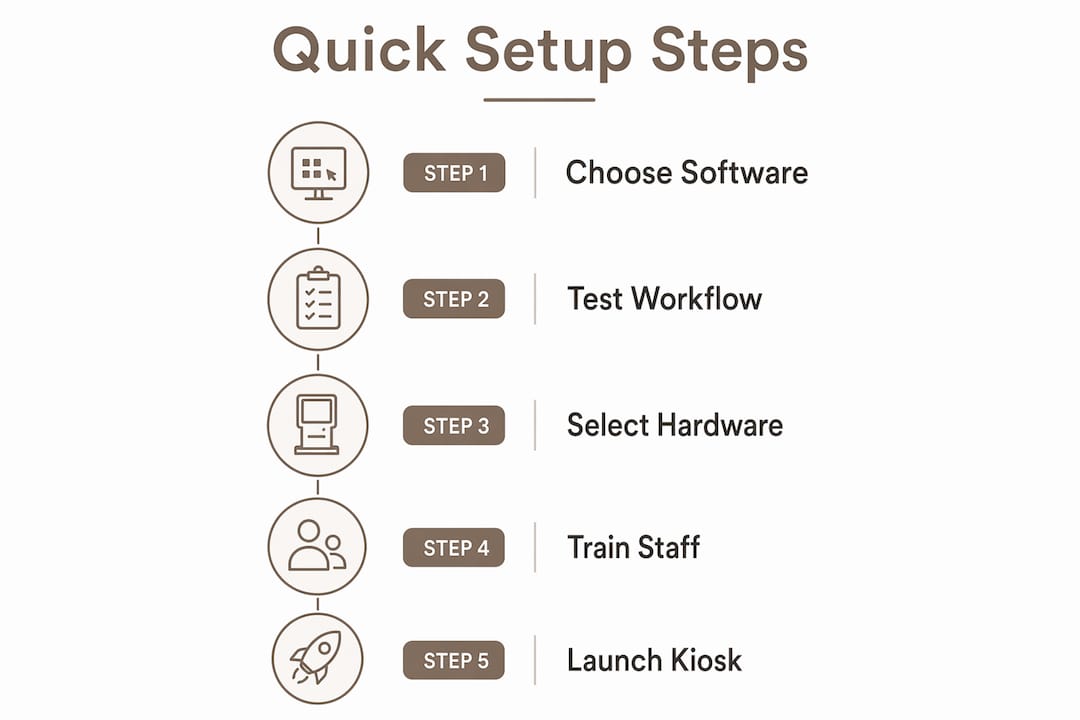
- How to implement a kiosk check-in step by step
- What does a kiosk check-in system cost, and how long does rollout take?
- Keeping your kiosk running: maintenance and monitoring
- U.S. privacy and compliance basics for kiosk operators
- Key Takeaways
- The case for keeping it simple
- Ezseat handles kiosk check-in without the hardware headache
- Useful sources and further reading
What does "kiosk check-in" actually cover?
The term covers more ground than most operators expect. At its core, a kiosk check-in is any on-site workflow where the customer registers their own arrival rather than telling a staff member. The delivery method varies widely.
Common deployment types:
- Dedicated floor-standing kiosk: a purpose-built enclosure with a large touchscreen, often including a badge printer or card reader. Best for high-volume venues like event halls or busy clinics where throughput justifies the hardware cost.
- Tablet on a stand: an iPad or Android tablet mounted at reception. Lower upfront cost, easier to reposition, but more vulnerable to theft and battery drain.
- Browser-based check-in (QR or short URL): customers use their own phone or a shared device to open a webpage and join the queue. No app install, no proprietary hardware. This is the fastest path to launch for food trucks, barbershops, and pop-up events.
- Staffed kiosk / assisted self-service: a staff member guides customers through a shared screen. Useful for clinics where patients may need help with health questionnaires.
For most small venues, browser-based entry wins on speed and cost. Self-service kiosk solutions that pair browser check-in with mobile options remove app-install friction entirely, which matters when your customer is standing outside a food truck in the rain.
Pro Tip: Start with a browser-based pilot before buying any hardware. You can validate the workflow, measure queue times, and train staff in under two weeks, then add a tablet stand or dedicated kiosk only if volume demands it.
Why a self-service check-in system pays off quickly
The operational case is straightforward. Staff stop spending the first 90 seconds of every customer interaction on name-taking and data entry. That time compounds fast across a busy shift.
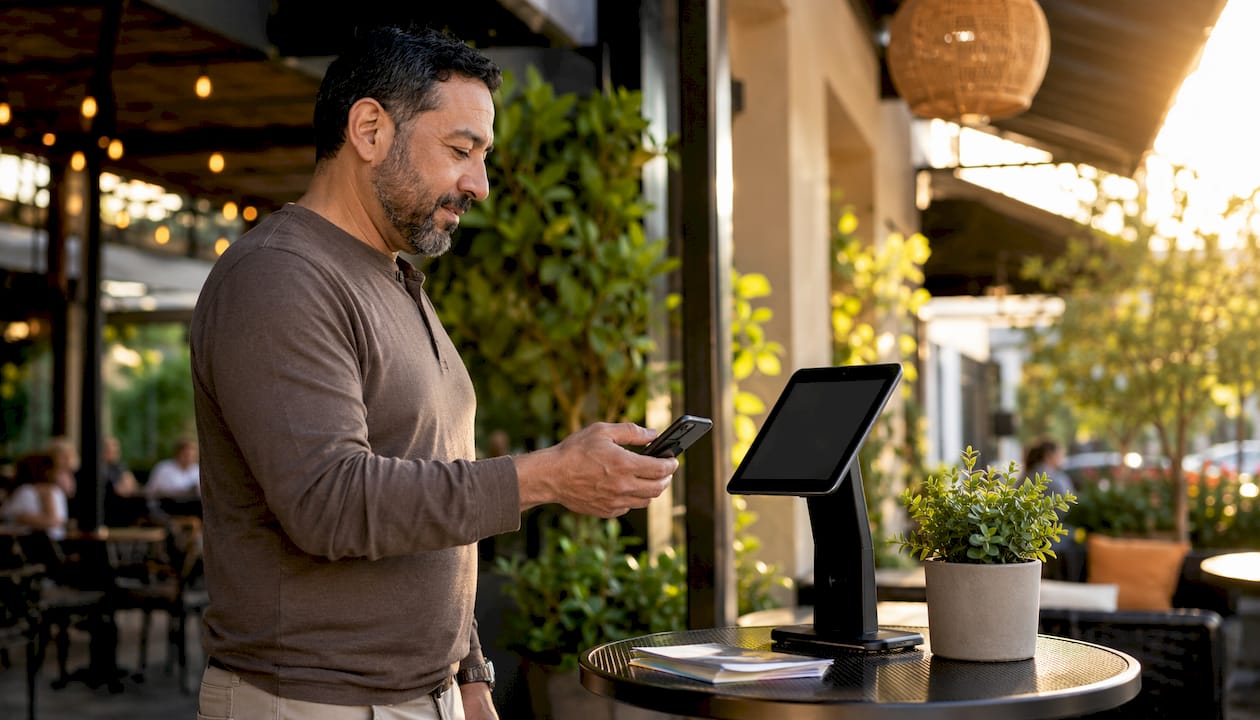
Over 60% of guests choose self-check-in when given the option, and check-ins at kiosks can typically be completed in under 3 minutes. That preference translates directly into shorter perceived wait times, even when the actual queue length stays the same.
Primary benefits by venue type:
- Restaurants and food trucks: faster table turns, reduced front-of-house interruptions, real-time queue visibility for the kitchen
- Barbershops: customers join remotely or on arrival, staff see the queue on any device, no shouting names across the shop
- Clinics: digital intake forms replace paper clipboards, consent signatures are captured and logged, staff focus on care instead of admin
- Event venues: upsell conversion improves when guests self-check-in, because the flow can surface add-ons at the right moment without a staff member having to pitch them
The staff-time savings are the headline number, but the upsell angle is underused. A well-designed kiosk flow can prompt a customer to add a service or upgrade at exactly the moment they're already engaged with the screen.
What features should you require from check-in kiosk software?
Not all self-check-in kiosk software is equal. These are the features worth treating as non-negotiable versus optional.
| Feature | Priority | Notes |
|---|---|---|
| Browser-based entry (no app) | Must-have | Removes the single biggest friction point for customers |
| SMS / call notifications | Must-have | Customers leave the waiting area; staff call them back |
| Public display / ticket numbers | Must-have | Visible queue status reduces anxiety and walk-offs |
| POS / scheduling integration | Must-have | Single source of truth; avoids double-entry errors |
| Custom intake fields | Must-have | Collect what you need, nothing more (data minimization) |
| Multi-queue support | Must-have for multi-service venues | Separate lines for different services or staff |
| Digital signatures | High for clinics and events | Consent forms, NDAs, health questionnaires |
| ADA-accessible UI | Required | Screen reader support, reachable touch targets |
| Reporting and audit trail | High | Timestamps, who signed what, queue metrics |
| Badge / ticket printing | Optional | Useful for events; overkill for most small venues |
| ID scanning | Optional | Relevant for age-restricted services |
Kiosk systems that integrate with core POS and scheduling platforms consistently outperform standalone solutions. The kiosk should never be an island.
On accessibility: the ADA requires that self-service technology be usable by people with disabilities. That means touch targets at reachable heights (no higher than 48 inches for a forward reach), sufficient color contrast, and a staffed alternative always available.
Hardware vs. software: which setup fits your venue?
| Configuration | Upfront Cost | Maintenance | Best For |
|---|---|---|---|
| Dedicated floor kiosk | High | Moderate (vendor support) | High-volume clinics, event halls |
| Tablet on stand | Low–Medium | Low (consumer device) | Barbershops, small restaurants |
| Browser / QR on shared device | Very low | Very low | Food trucks, pop-ups, pilots |
| BYOD / customer's own phone | Near zero | None | Any venue with reliable Wi-Fi |
A few practical notes. Dedicated kiosks need AC power and physical anchoring to prevent theft. Tablet stands should use a lockable enclosure and kiosk-mode software to prevent customers from navigating away. Placing kiosks at natural decision points on arrival, where customers already pause, prevents new bottlenecks rather than creating them.
Quick decision checklist:
- Under 50 customers per day? Start with a browser/QR setup.
- Need badge printing or ID verification? Budget for a dedicated kiosk.
- Renting space or running pop-ups? BYOD is the only sensible choice.
- Clinic with HIPAA obligations? Avoid storing health data on shared public devices.
How to implement a kiosk check-in step by step
- Assess your needs. Map your current queue: peak volume, average wait, staff touchpoints, and existing POS or scheduling tools.
- Choose your solution. Match features to the checklist above. Prioritize browser-based entry and POS integration.
- Procure hardware (if needed). Order tablet stands or enclosures only after confirming the software pilot works.
- Set up integrations. Connect the kiosk to your POS, scheduling system, and SMS gateway. Test each connection with live data before launch.
- Run a pilot. Pick one busy shift. Measure queue times before and after. Collect staff feedback on the fallback workflow.
- Train staff. Every team member needs to know the manual check-in procedure for when the kiosk is unavailable.
- Launch. Post clear signage directing customers to the kiosk. Keep a staff member nearby for the first week.
- Monitor. Review queue metrics weekly. Check UI flows monthly.
Pilot validation checklist:
- SMS notifications fire within 30 seconds of check-in
- POS or scheduling system reflects new entries in real time
- Accessibility: test with a screen reader and at seated height
- Staff can complete a manual check-in in under 60 seconds when needed
What does a kiosk check-in system cost, and how long does rollout take?
| Deployment | Software (monthly) | Hardware (one-time) | Typical Rollout |
|---|---|---|---|
| Browser/QR pilot | Free trial | Free | 1–2 weeks |
| Tablet on stand | $30–$100 | Medium | 2–3 weeks |
| Dedicated kiosk | $50–$200 | High | 4–8 weeks |
Most SaaS queue platforms offer a free trial period. Use it to validate the three integrations that matter most (POS sync, SMS delivery, public display) before committing to a paid plan. Hardware costs are one-time; software is recurring, so the total cost of ownership over 12 months usually favors a tablet-based setup over a dedicated kiosk for venues under 100 customers per day.
Keeping your kiosk running: maintenance and monitoring
Treating a kiosk as "set and forget" is the fastest way to damage first impressions. A kiosk that fails at the entry point is worse than no kiosk at all.
Daily checks:
- Confirm the device is online and the browser session is active
- Check battery level or verify AC power connection
- Clear any error messages on the public display
Weekly checks:
- Review queue metrics for anomalies (sudden drop in check-ins often means a UI issue)
- Test SMS delivery end-to-end
- Wipe the screen and check physical anchoring
When things go wrong: reboot the device first. If the network is down, activate the manual check-in procedure immediately and post a sign directing customers to staff. Never leave the entry point unmanned while the kiosk is offline.
Pro Tip: Once a month, have someone unfamiliar with your system walk through the check-in flow as a "mystery user." They will find the confusing step your regular staff stopped noticing weeks ago.
U.S. privacy and compliance basics for kiosk operators
Data minimization: collect only the fields you actually use. A name and phone number cover most queue workflows. Every additional field is a liability.
TCPA (SMS notifications): obtain explicit consent before sending automated text messages. A checkbox at check-in stating "I agree to receive SMS updates about my queue status" satisfies the basic requirement, but consult legal counsel for your specific setup.
HIPAA (clinics): do not store protected health information on a shared public kiosk. Health questionnaires and intake forms should route to a secure, authenticated system, not sit in a browser cache on a lobby tablet. Prefer staff-assisted check-in for any workflow touching clinical data.
PCI (card payments at the kiosk): use a certified card reader with tokenization. Never store raw card data on the kiosk device.
Physical security: lock the device in kiosk mode so customers cannot access the underlying OS. Anchor the hardware to prevent removal. Enable remote wipe if the device supports it.
Key Takeaways
A browser-based kiosk check-in with POS integration, SMS notifications, and a staffed fallback is the most practical, lowest-risk setup for small venues in the U.S.
| Point | Details |
|---|---|
| Start browser-first | A QR or short URL pilot launches in 1–2 weeks with near-zero hardware cost. |
| Integration is non-negotiable | Connect the kiosk to your POS or scheduling system before going live. |
| Customer preference is clear | Over 60% of guests choose self-check-in when offered, and check-ins at kiosks can typically be completed in under 3 minutes. |
| Compliance varies by venue | Clinics need HIPAA-aware workflows; any card-present payment requires PCI tokenization. |
| Ezseat fits the small-venue model | Ezseat's browser-based queue system covers entry, SMS notifications, public display, and multi-queue support with no app download required. |
The case for keeping it simple
The kiosk check-in category has a hardware obsession problem. Vendors lead with floor-standing enclosures and badge printers, and operators assume they need all of it to look credible. Most small venues don't. A food truck running 80 covers on a Saturday does not need a $3,000 kiosk. It needs a QR code on a laminated card, a phone in the owner's pocket, and an SMS that fires when the order is ready.
The operators who get the most out of self-service check-in treat it as a hybrid tool, not a replacement for staff. They keep a person at the front for the 10% of customers who need help, and they let the kiosk handle the other 90%. That split is where the real efficiency lives. The kiosk frees staff to have better conversations, not fewer conversations.
One thing most guides skip: placement matters more than hardware spec. A kiosk tucked in a corner that customers walk past is useless. Put it where people already stop, at the door, at the counter edge, at the natural pause point on arrival. That one decision affects throughput more than whether you chose a 10-inch or 12-inch tablet.
Ezseat handles kiosk check-in without the hardware headache
Most small venues don't need a $4,000 kiosk enclosure. They need customers in a queue, staff notified, and a display showing who's next. Ezseat delivers exactly that from a browser, with no app for customers to download and no proprietary hardware to buy.
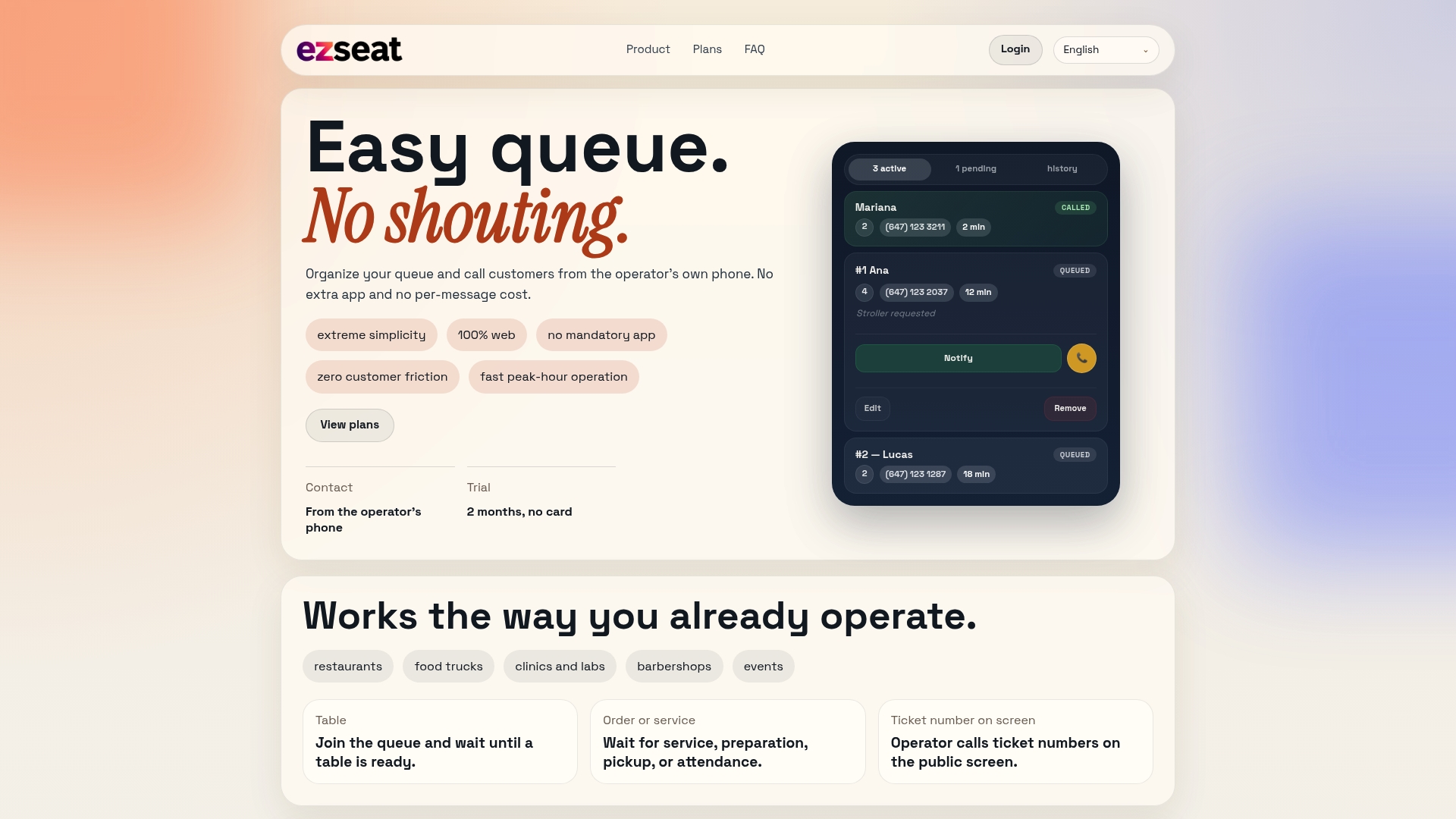
Customers join the queue by scanning a QR code or typing a short URL. Operators manage the entire flow from a phone or tablet. The public display screen shows ticket numbers in real time, SMS and call notifications go out automatically, and multi-queue support handles venues with more than one service line. Plans scale from a single-location pilot to multi-device setups as volume grows, and a free two-month trial lets you validate the full workflow before paying anything.
If you're ready to cut front-desk interruptions and give customers a cleaner arrival experience, start your free trial at Ezseat and have a browser-based queue running this week.
Useful sources and further reading
These references cover the core topics in this guide. Use them when evaluating vendors, drafting security checklists, or reviewing compliance requirements.
- Kiosk Check-In/Out Systems Explained (Advanced Kiosks): practical deployment guidance covering placement, maintenance, digital signatures, and the risks of treating kiosks as set-and-forget installations.
- Hotel Self-Service Kiosk Software (Mews): data on guest preference for self-check-in and upsell conversion during kiosk flows; useful benchmarks for any venue type.
- Hudini Kiosk (Hudini): integration-focused perspective on connecting kiosks to core operational systems for best results.
- Hotel Self-Service Kiosk (Canary Technologies): covers the browser-plus-kiosk pairing model and the case for removing app-install friction.
When evaluating any vendor, ask specifically how they handle POS sync, SMS consent logging, and device lockdown. Those three questions will tell you more about a platform's real-world readiness than any feature checklist.